Runs
A run is one time a workflow goes through its steps, from the trigger to the last step. Focal records every run, whether a trigger started it or someone started it by hand, so you can check that a workflow does what you expect and find out what went wrong when it doesn’t.
Runs live in the header of the workflow editor. The Run manually button starts a run on demand, the Run history button shows the latest runs, and the Workflow Runs window lists them all. Each run opens to its details: which version ran, how long it took, and what every step received, produced or failed with.
Run a workflow manually
A manual run starts a workflow once, straight away, without waiting for its trigger. Use it to test a workflow on a real task or asset after you change it, or to process one item the trigger missed.
- Open Workflows and select the workflow.
- Select Run manually, the play button at the right of the header.
- Fill in the fields the workflow asks for, such as Task (see Choose what a manual run works on).
- Select Run now.
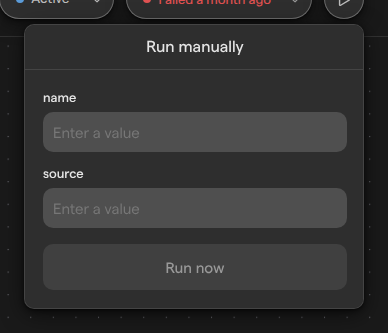
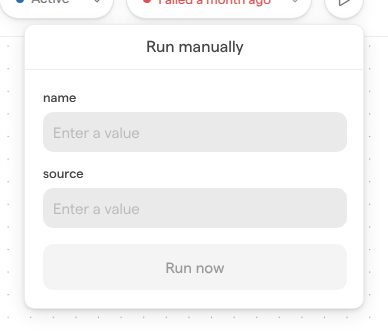
Focal starts the run and opens its details in the Workflow Runs window, where you can follow it step by step. Run now stays unavailable until every required field is filled in. When the workflow has a problem that stops it from running, such as a missing trigger, the popover shows This workflow is invalid with the list of problems instead of the fields. When the workflow needs nothing, it reads This workflow does not require any inputs.
A manual run uses the workflow’s last published version, not unsaved changes in the draft, so a workflow must be published before you can run it by hand; see Publishing and versions. It also works on a paused workflow, which is a safe way to test before you turn the workflow on. On a workflow that has never been published, Run now shows the error “Publish this workflow before running it.” and no run starts.
Choose what a manual run works on
A manual run has no event to start from, so the Run manually popover asks for the item the trigger would normally pass to the workflow. The fields depend on the trigger:
| Trigger | What the popover asks for |
|---|---|
| Task is updated | Task, the task’s ID (Enter a task ID) |
| Media is added to library, Media is updated | Media, an asset picked in Select a media file |
| Ad performance reaches a value | Ad ID, Creative fingerprint or Media ID, depending on the trigger’s Breakdown by |
| Triggered via API | The fields defined in the trigger’s settings, one input each |
A task’s ID is in the page address when the task is open on its board: it is the part after panel=row_. For Ad performance reaches a value with the Creative breakdown and more than one ad account, the popover also asks for the Ad account.
A manual run goes through the trigger like any other run. For Task is updated, the task must be on the board the trigger watches and must meet the trigger’s conditions right now; a task that does not meet them produces a Skipped run rather than a failed one (see Why a run is skipped). The data the trigger passes on, and how later steps use it, is described in Variables.
Check recent runs
The Run history button in the workflow header shows how the latest run went. Its label names the most recent outcome, such as Ran 5 minutes ago or, in red, Failed a month ago. It reads Running while a run is in progress and Not ran yet for a workflow that has never run.
- Open the workflow from Workflows.
- Select the Run history button in the header.
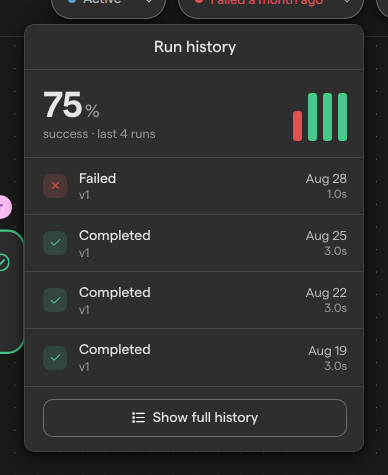
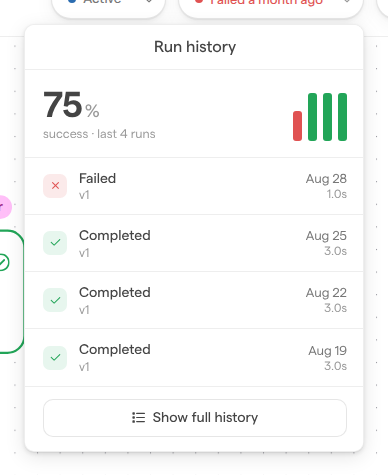
The popover shows the success rate over the latest runs, a bar for each run (red for failed, green for completed, taller for longer runs), and the five most recent runs. Each run shows its status, the version that ran (such as “v1”), when it started and how long it took. Select a run to open its details, or Show full history to see every run.
Only completed, failed, running and canceled runs appear in the popover. Queued and skipped runs are listed in the full history only.
Browse the full run history
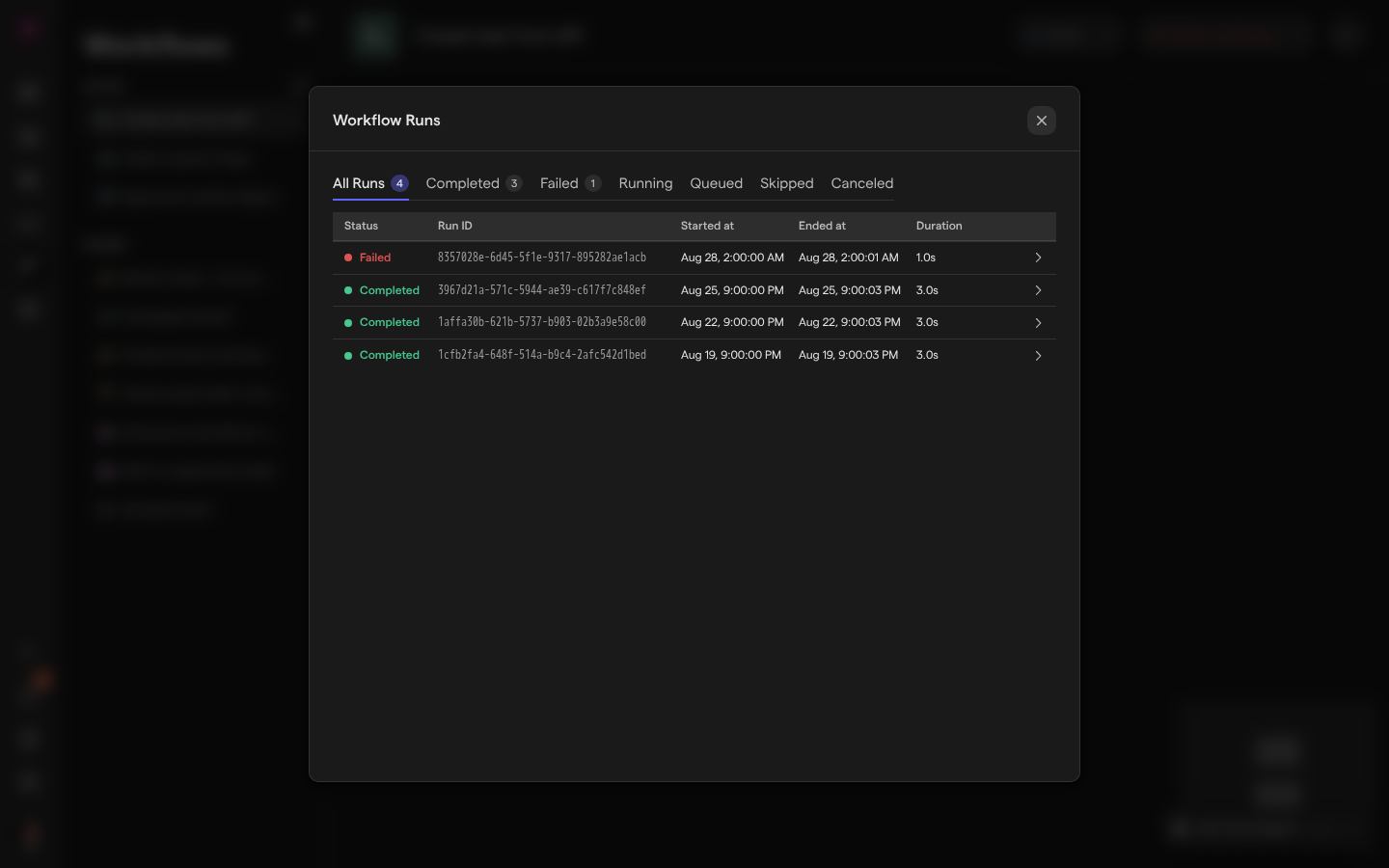
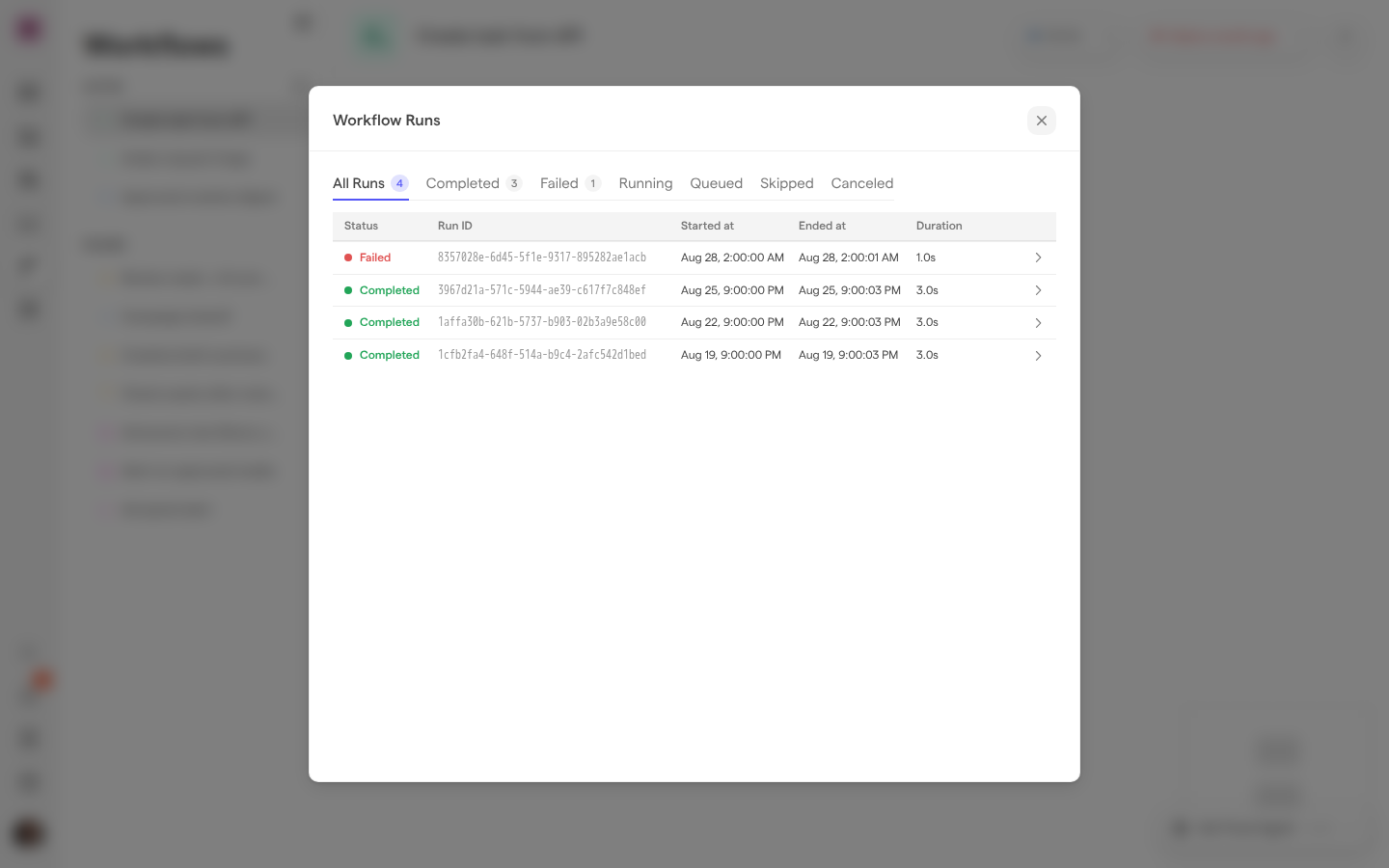
The Workflow Runs window lists every run of a workflow, newest first. Open it with Show full history in the Run history popover.
The tabs across the top filter the list by status:
- All Runs
- Completed
- Failed
- Running
- Queued
- Skipped
- Canceled
Each tab shows the number of runs it holds. The table has five columns:
- Status, the run’s outcome.
- Run ID, the run’s unique ID.
- Started at and Ended at, the date and time. A run that has not ended shows a dash.
- Duration, how long the run took.
The window loads 100 runs at a time; select Load more at the bottom of All Runs to see older runs. A tab with no runs says so, for example No failed runs. Select a run to open its details, and use the back arrow (Back to runs list) to return to the list. Press Esc to close the window.
Find out why a run failed
A run’s details show what happened at every step, so you can see where a run stopped and why. Open them by selecting a run in the Run history popover or the Workflow Runs window.
- Open the failed run from Run history, or from the Failed tab of the Workflow Runs window.
- Read the Error box under the run’s times. It shows the message of the first step that failed.
- Under Steps, find the step marked Failed and select it to expand it.
- Open Error details for the step’s full error message, and Input to see the data the step received.
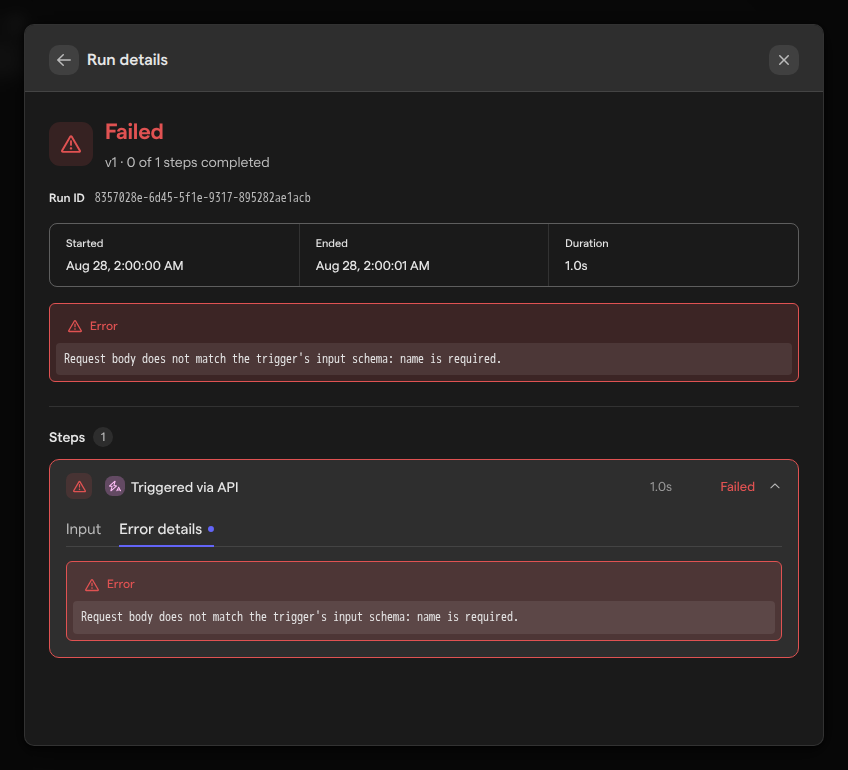
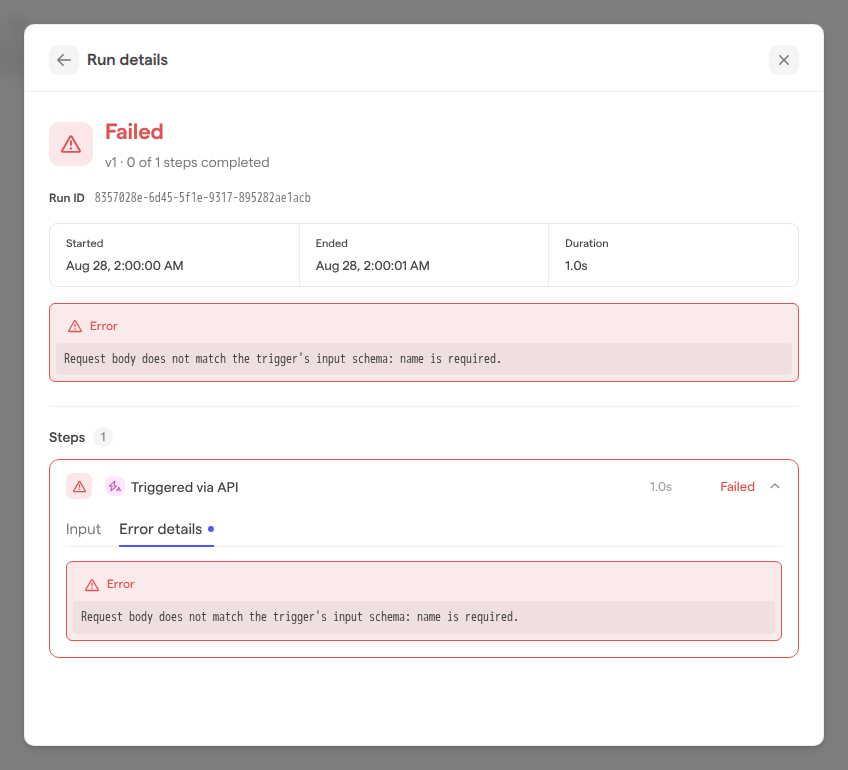
The top of the details shows:
- the run’s status
- the version that ran
- how many steps completed (for example “0 of 1 steps completed”)
- the Run ID
- when it Started and Ended
- its Duration
Each step lists its duration and status. A step can open to up to five tabs, depending on what it recorded:
- Input
- Output
- Error details
- Warnings
- Logs
A step that completed but reported warnings carries a warning sign (Completed with warnings).
Fix the cause in the workflow’s draft, publish it, then start a manual run to check the fix. Focal does not rerun a failed run for you.
Cancel a run
Canceling stops a run that is queued or still running, for example one held by a long Wait step. A canceled run stays in the history with the status Canceled.
- Open the Workflow Runs window with Run history → Show full history.
- Select Cancel on the run’s row, or open the run and select Cancel run.
- In the Cancel this run? dialog, select Yes, cancel run.
To stop every queued and running run of the workflow at once, select Cancel all running above the list, then Yes, cancel all in the Cancel all runs? dialog. The buttons appear only while a run is queued or running.
Note: Canceling cannot be undone, and a step that is already in progress may still finish. To stop triggers from starting new runs, pause the workflow instead (see Building a workflow).
Run and step statuses
A run’s status says how the whole run ended; each step inside it has a status of its own.
| Run status | Meaning |
|---|---|
| Queued | The run is waiting to start |
| Running | The run is in progress, including while it waits at a Wait step |
| Completed | Every step that should run finished |
| Failed | A step failed, and the run stopped there |
| Skipped | The trigger decided the run should not go ahead |
| Canceled | Someone canceled the run |
In the steps list, a step shows:
- Completed
- Failed
- Running
- Pending (not reached yet)
- Skipped
- Canceled
Steps after an unmet Condition or Filter step show Skipped, and the run still counts as completed. Only completed and failed runs count towards the success rate in the Run history popover.
Why a run is skipped
A skipped run is one the trigger started and then stopped before any other step ran, because the change or item that started it no longer qualifies. It is not an error.
Task is updated and Media is updated check their conditions again when the run starts, against the task or asset as it is at that moment. If someone changed the task back in the meantime, or a manual run names a task that does not meet the conditions, the run ends as Skipped. Ad performance reaches a value skips a run when there is no performance data for the ad, creative or asset in the trigger’s timeframe, or when it belongs to an ad account the trigger does not cover.
Skipped runs appear only under the Skipped tab of the Workflow Runs window, not in the Run history popover or its success rate.
Who can run workflows and see runs
Runs are part of Workflows, which only space owners and organization admins can open. They can start manual runs, see the run history and details of every workflow in the space, and cancel runs. There are no separate permissions for runs.
Space members and guests who are not organization admins don’t see Workflows in the space sidebar, and so can’t see runs either, even for workflows that act on their tasks. See Roles and permissions and Space users to change who has access.