Organization settings: General
The General page of organization settings holds the basic details of your organization, the company account that every space and every person in Focal belongs to. Its main setting is the organization’s name, which Focal shows to the people you invite and sends to the tools you connect through webhooks. The page opens from Space Settings → Organization → General (Organization general settings).
Changes on the General page save as you type: there is no Save button. They apply to the whole organization at once, whichever space you opened the settings from. Only an Admin (an organization admin) can open the page.
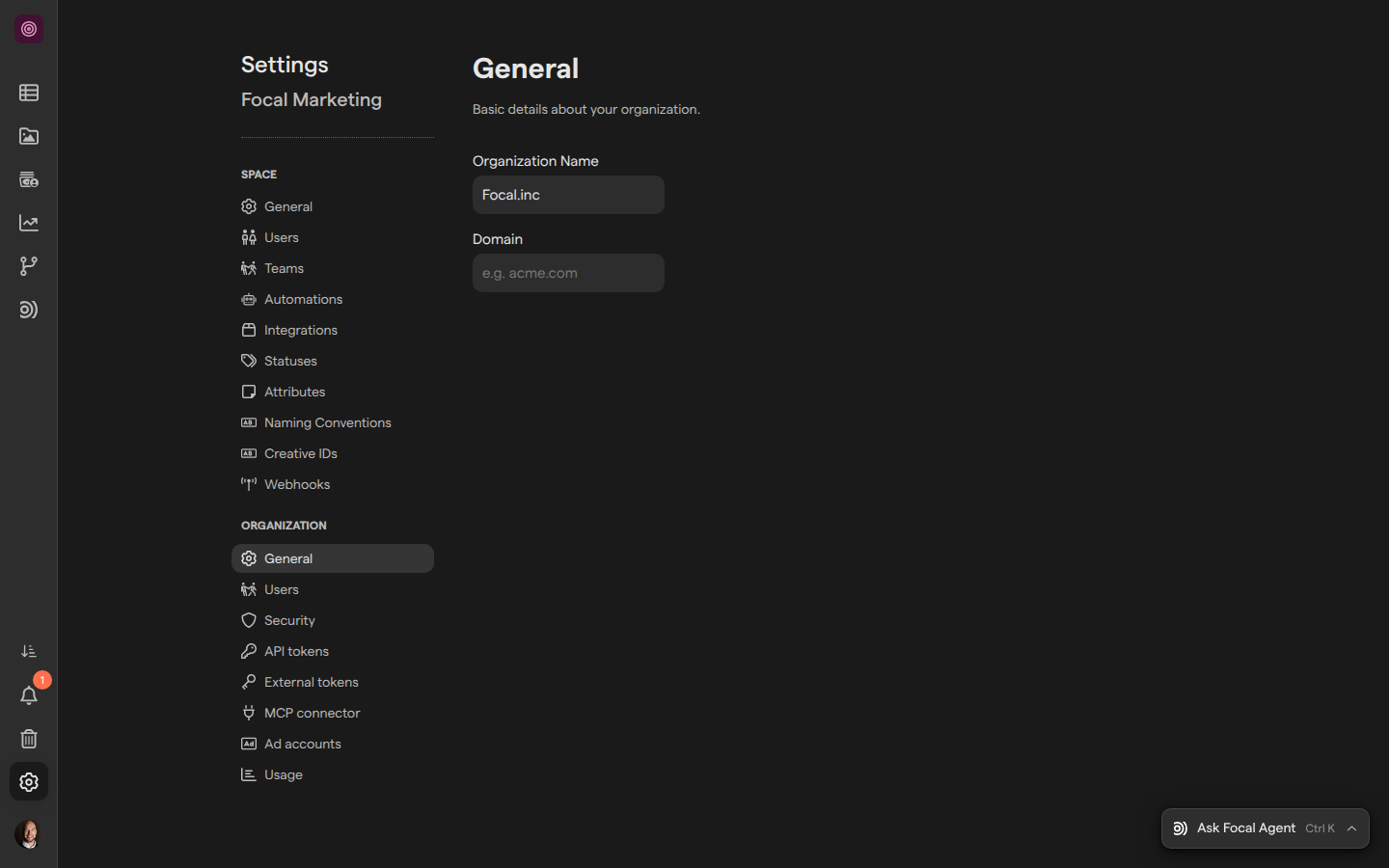
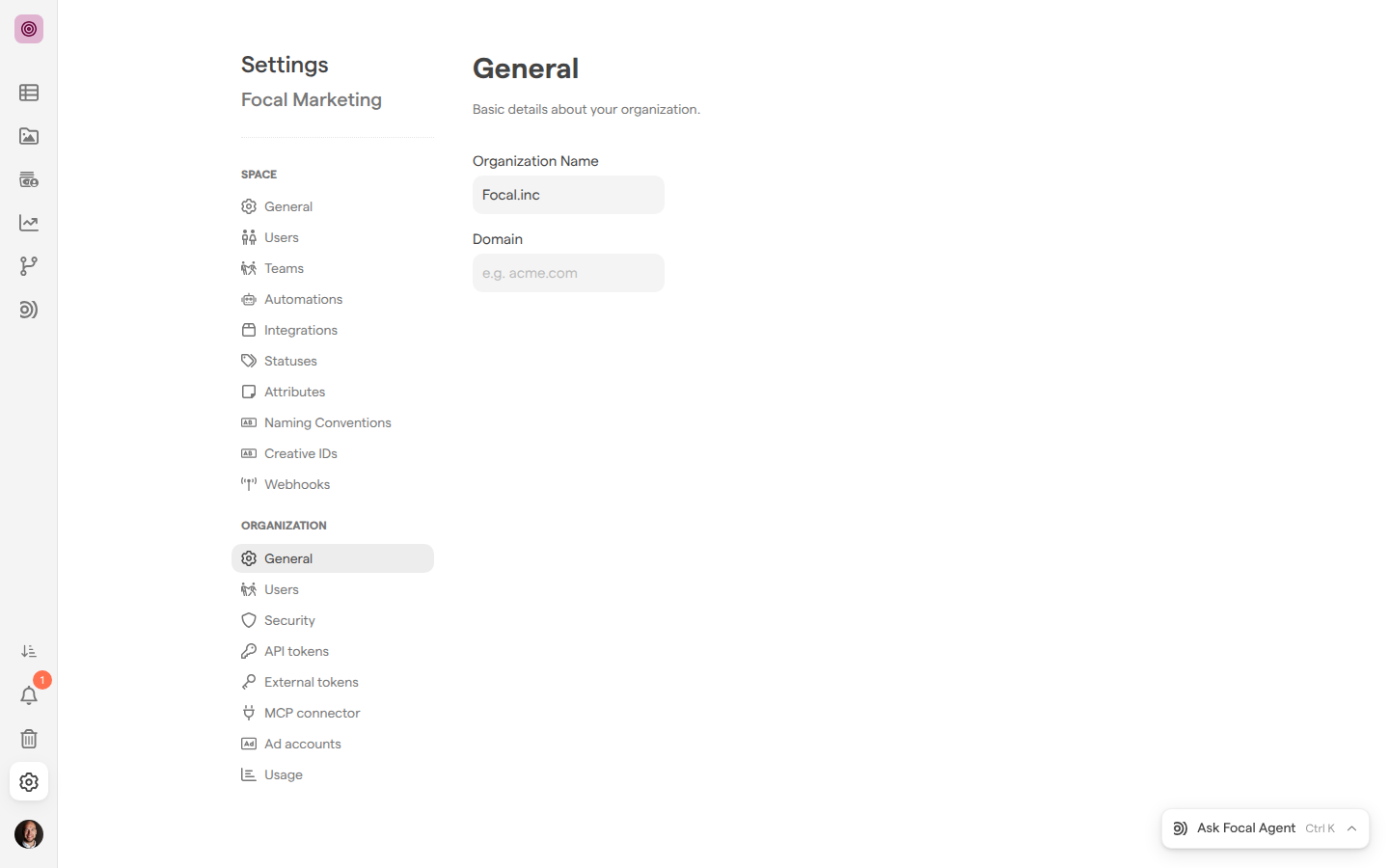
Open the organization’s general settings
The organization’s settings sit in the same settings menu as a space’s settings, in the Organization group below the space’s pages. Only organization admins see that group. The organization has one set of settings, so the General page shows the same organization whichever space you open it from.
- Open any space in the organization.
- Select Space Settings, the gear icon at the bottom of the sidebar.
- Under Organization in the settings menu, select General.
You can also go straight to the page with Organization general settings. The settings menu has two General entries: the one under Space holds the space’s own name and access, described in Space settings: General; the one under Organization is the page this article covers.
The Organization group also holds the organization’s Users, Security, API tokens, MCP connector, Ad accounts and Usage pages. See Settings for what each page covers. Your organization’s email domains are added and verified on the Security page, described in Organization settings: Security.
Rename your organization
The organization name is the name your company goes by in Focal. It is set when the organization is created at sign-up, and an organization admin can change it at any time on the General page of organization settings.
- Open Space Settings → Organization → General.
- Select the Organization Name field and type the new name.
The new name saves while you type and applies at once for everyone in the organization.
The organization name shows up in these places:
- In the dialog for inviting people to a space, where the Invite as organization member option says that the invited people get access to every public space in the organization, by name. See Space settings: Users.
- On the home page of someone who belongs to the organization but to no space yet, which tells them to ask an admin of the organization, by name, to invite them to a space.
- In the data every webhook sends, next to the organization’s id. See Space settings: Webhooks.
Renaming the organization doesn’t rename any space. A space’s name is changed on its own General page, in Space settings: General.
Who can change the organization’s general settings
The organization’s general settings can be changed by organization admins only. An organization admin sees the Organization group in the settings menu of every space they open, and can rename the organization from any of them.
Members and guests of the organization don’t see the Organization group. If they follow a link to the General page of organization settings, Focal takes them back to the space instead, without an error message. Being a space owner doesn’t open the page either: a space owner who is a Member of the organization manages that space’s settings, not the organization’s. A name change from anyone who is not an organization admin is also refused by Focal itself, not only hidden.
To let someone rename the organization, make them an Admin in Organization settings: Users. For what each organization role, space role and board access level allows, see Roles and permissions.