User settings: Profile
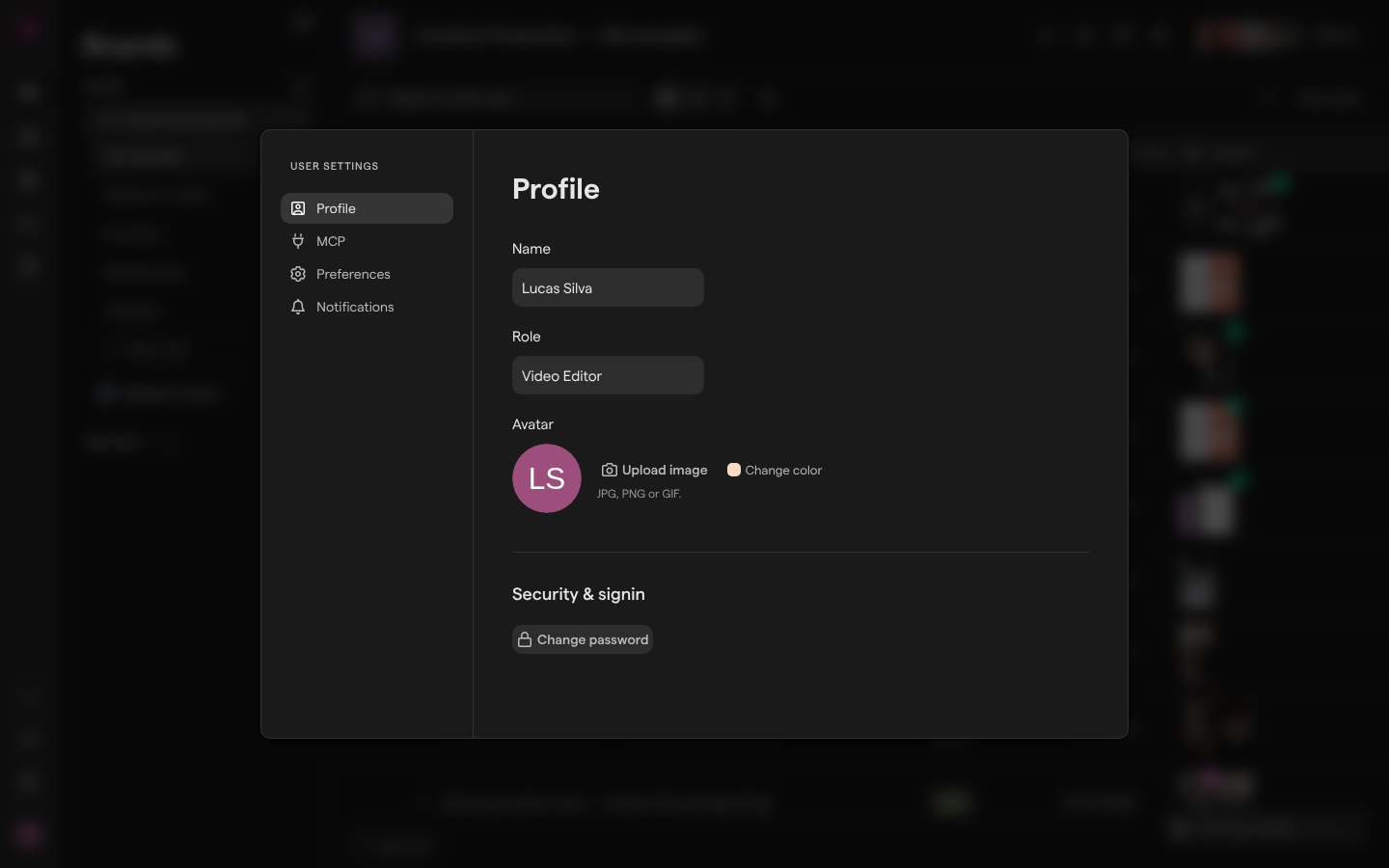
The Profile page of User Settings holds the details that identify you in Focal: your name, your role (a job title you write yourself) and your avatar. It is also where you change your password. Everyone with a Focal account has a Profile page, whatever their role in the organization or a space, and only you can change what is on yours.
Your name, role and avatar save as soon as you leave the field or pick a new image: there is no Save button. A new password is the exception, and is confirmed in its own dialog. Signing out sits in the same avatar menu that opens User Settings.
Open your profile settings
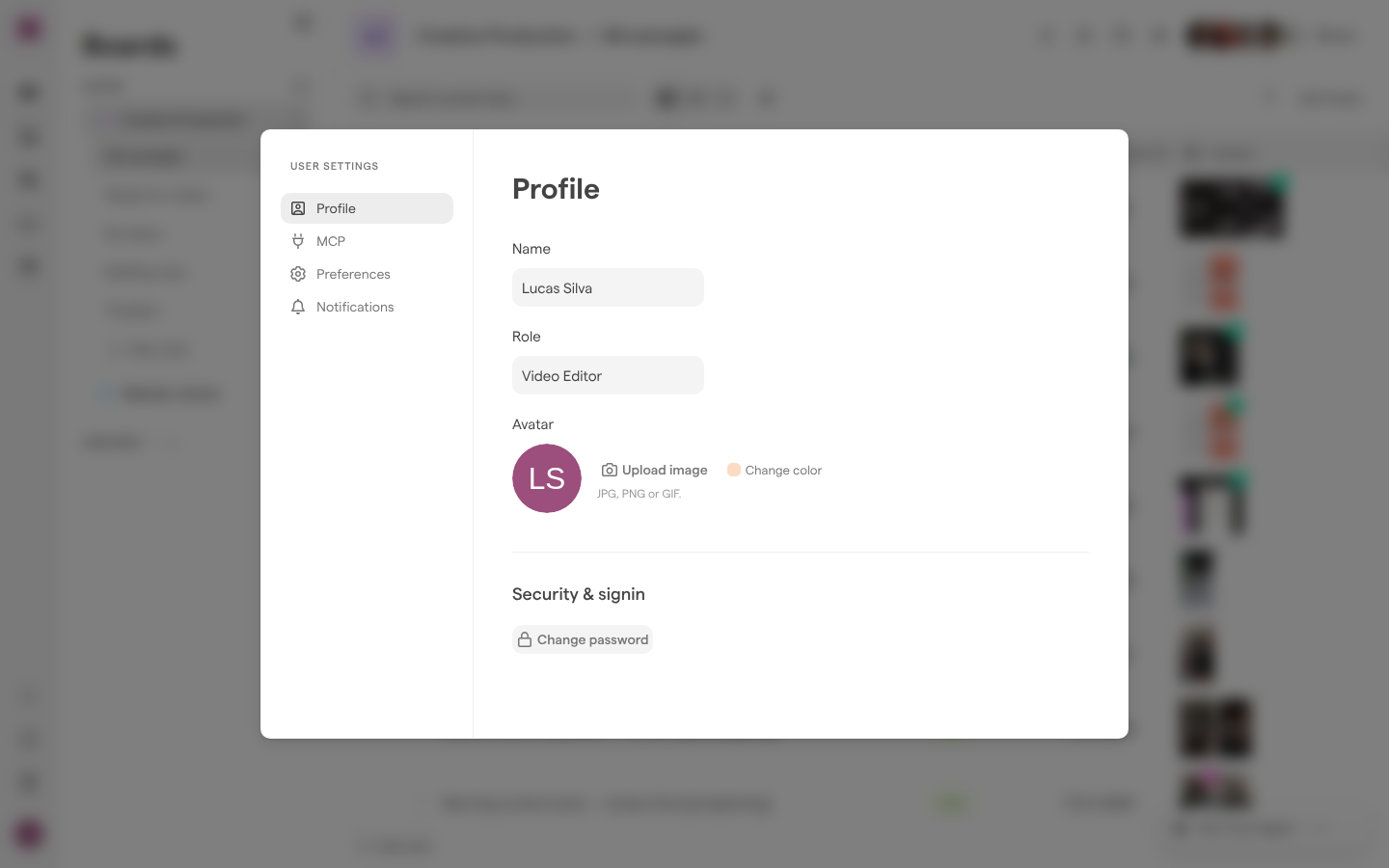
User Settings is a window that opens over whatever page you are on. It has four pages in its menu: Profile, MCP, Preferences and Notifications. Profile is the page it opens on. You reach User Settings from the avatar menu, which is your own avatar at the bottom of the sidebar inside any space.
- Open any space.
- Select your avatar at the bottom of the sidebar. The avatar menu opens, with your name and role at the top.
- Select User settings.
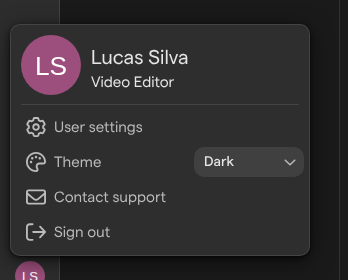
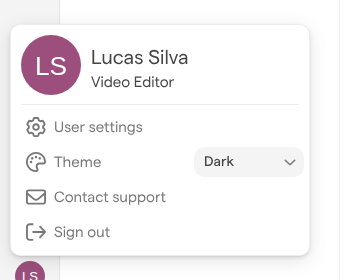
The avatar menu also has the Theme setting, a Contact support link that writes an email to Focal’s support team, and Sign out. The other pages of User Settings are covered in User settings: Preferences, Notifications and MCP. People who can open Space Settings also see a Space settings link at the bottom of the User Settings menu, which closes the window and opens the space’s settings.
Press Escape or select outside the window to close User Settings.
Change your name and role
Your name is how other people in your organization find and recognize you in Focal, for example next to your comments and in the list of people in a space. Your role is a short description of what you do, such as “Video Editor”, shown under your name at the top of the avatar menu.
The Role field is a free-text job title. It is not a Focal role and changes nothing about what you can see or do. Your Focal roles (Admin, Member or Guest in the organization; Space owner, Member or Guest in a space) are set by an organization admin or a space owner; see Roles and permissions.
- Open User settings from the avatar menu.
- On the Profile page, select the Name or the Role field.
- Type the new name or role.
- Select anywhere outside the field.
The change saves when you leave the field and applies everywhere at once. If you use the default initials avatar, it updates to the initials of your new name. If Focal can’t save the change, it shows “Failed to save changes”.
Change your avatar
Your avatar is the small picture shown with your name across Focal. Until you upload a photo, it is a generated image with your initials on a colored background. You can pick that color, or replace the initials with an image of your own.
To upload a photo:
- Open User settings from the avatar menu.
- Under Avatar, select Upload image, or select the avatar itself.
- Choose an image on your computer. The page suggests JPG, PNG or GIF.
The page shows “Uploading image…” and then “Finalizing…” while the image uploads, and the new avatar saves once it is done. If the upload fails, the page shows “Upload failed” with the reason, and Retry and Cancel buttons.
Once you have a photo, the buttons read Replace image and Remove. Replace image swaps in a different photo. Remove goes back to the initials avatar.
To change the color of the initials avatar, select the color swatch next to Change color and pick a color. The color saves straight away. Change color is shown only while you use the initials avatar. Focal also uses your color to mark your cursor when other people are working in the same place at the same time.
Change your password
Your password is the one you use to sign in to Focal with your email address. Unlike the rest of the Profile page, a new password doesn’t save on its own: you type your current password and the new one, and confirm.
- Open User settings from the avatar menu.
- Under Security & signin, select Change password. The Change password dialog opens.
- Type your current password in Your current password.
- Type the new password in New password.
- Select Update password.
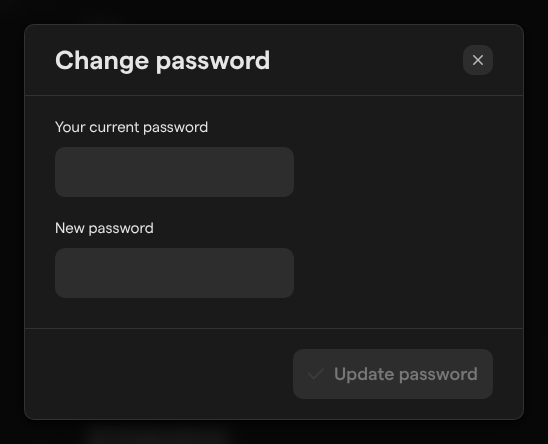
A new password must be at least 8 characters long. As you type, a line under the field rates it, from “Too short!” through “Ok password!” and “Good password!” to “Excellent password!”; we recommend a password longer than 10 characters with letters, numbers and a symbol. Update password stays unavailable until both fields are filled in.
When the change works, the dialog closes and Focal shows “Password updated”. If the current password is wrong or the new one is too short, Focal shows “Failed to update password” and your old password stays in place. To leave without changing anything, close the dialog with the × in its top corner.
If you have forgotten your current password, sign out and use “Lost your password? Click here” on the sign-in page instead. Changing your password doesn’t sign you out of other browsers or devices where you are already signed in.
Sign out
Signing out ends your Focal session in the browser you are using. Sign out on a shared or public computer, or when you want to sign in as someone else.
- Select your avatar at the bottom of the sidebar.
- Select Sign out.
Focal signs you out straight away, with no confirmation, and takes you to the sign-in page. Anything you had saved stays as it was; only the session in that browser ends.
Signing out applies to that browser only. Other browsers and devices where you are signed in stay signed in, so sign out in each of them separately.
To sign in again, use the sign-in method your organization allows. Organization admins can require single sign-on or turn off password sign-in, as described in Organization settings: Security.
Who can see and change your profile
Your profile belongs to you. The Profile page always shows your own details, and every change on it, including a new password, applies only to your own account. Each person keeps their own name, role, avatar and password up to date on their own Profile page.
Every person in Focal has a Profile page, organization admins, members and guests alike, and it works the same for all of them. What other people see is your name and avatar, wherever Focal shows who did something or who is in a space. The Role text on your profile is a job title only, and is separate from the roles that decide what you can do in Focal. To change those, ask an organization admin or the space’s owner; see Roles and permissions for what each role allows.