Dropbox
A Dropbox sync keeps a folder in your Dropbox and a folder in the Focal asset library matched, so files added, renamed, moved or removed on one side show up on the other. Teams use it when creative work starts or ends in Dropbox: an agency drops finished files into a shared Dropbox folder and they arrive in Focal as assets, ready for review on a board.
Focal connects to Dropbox through a sync, which runs in one of three directions: two-way, import only or export only. A space owner or an organization admin sets it up on a top-level library folder; everyone else in the space sees its status. Google Drive syncs the same way.
Set up a Dropbox sync
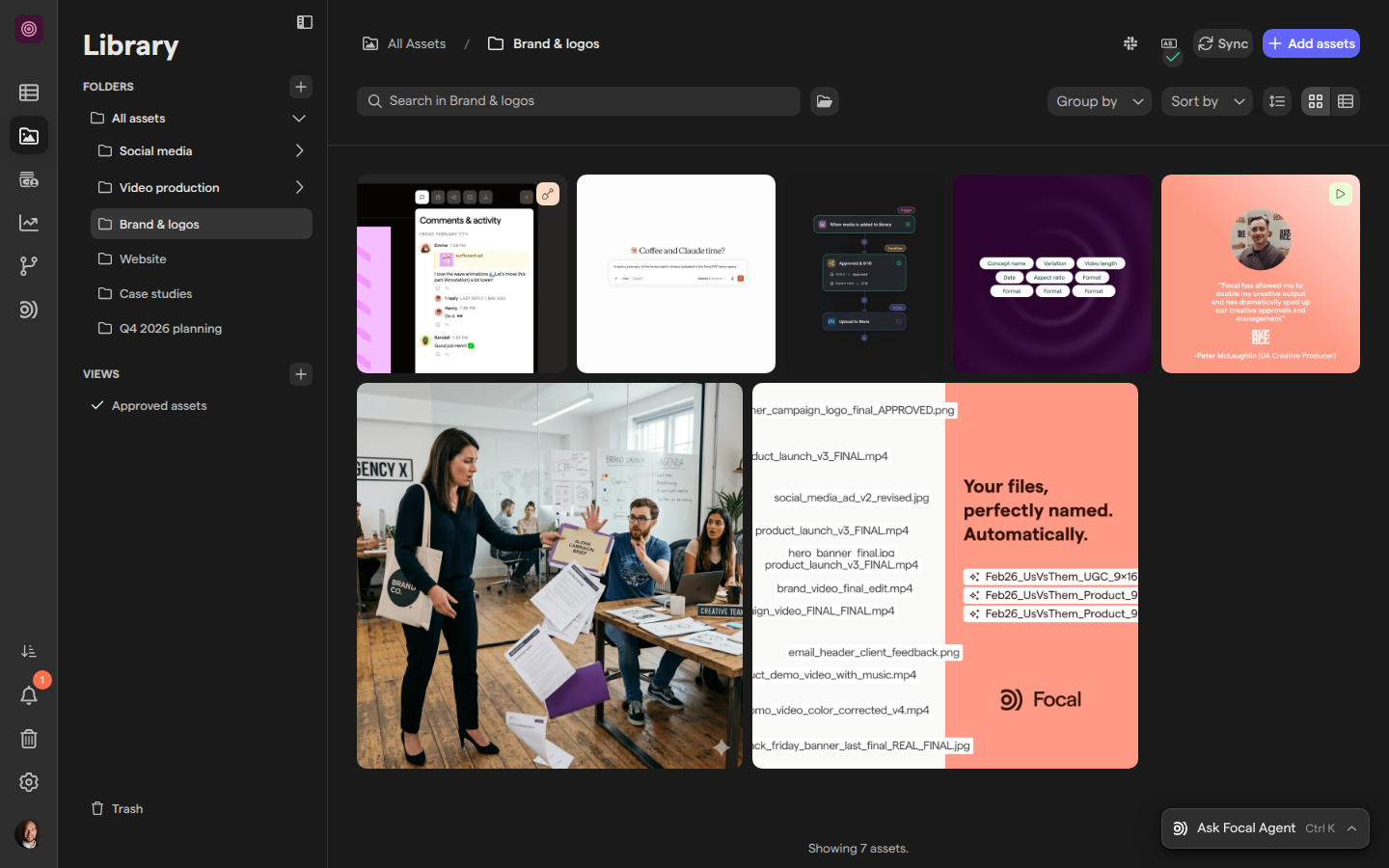
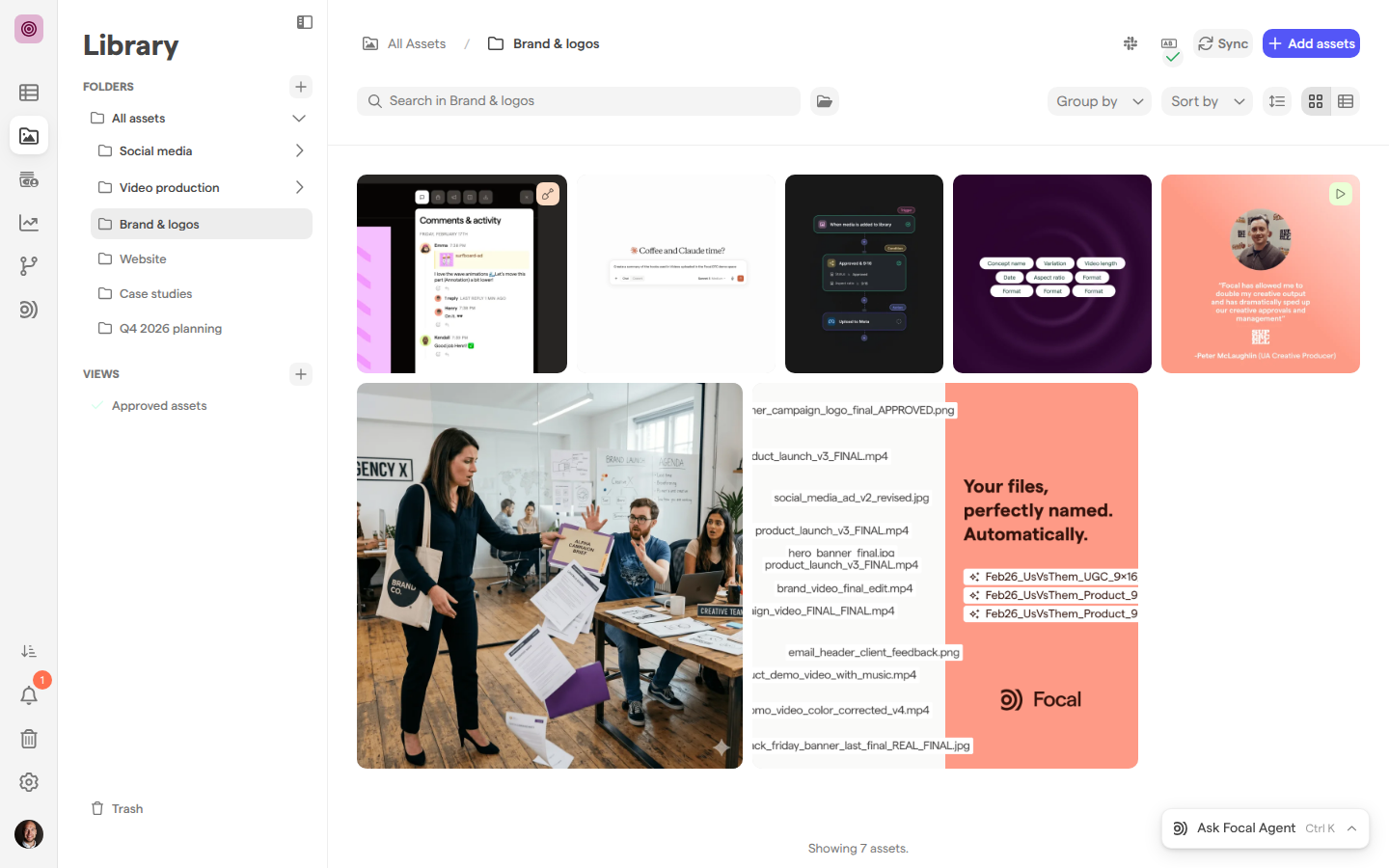
A Dropbox sync is set up from the Focal folder that will hold the synced files, with the Sync button next to Add assets in the folder’s toolbar. The button is on top-level folders, and their subfolders sync with them.
- Open Assets in the left sidebar and open the top-level folder you want to sync.
- Click Sync. The
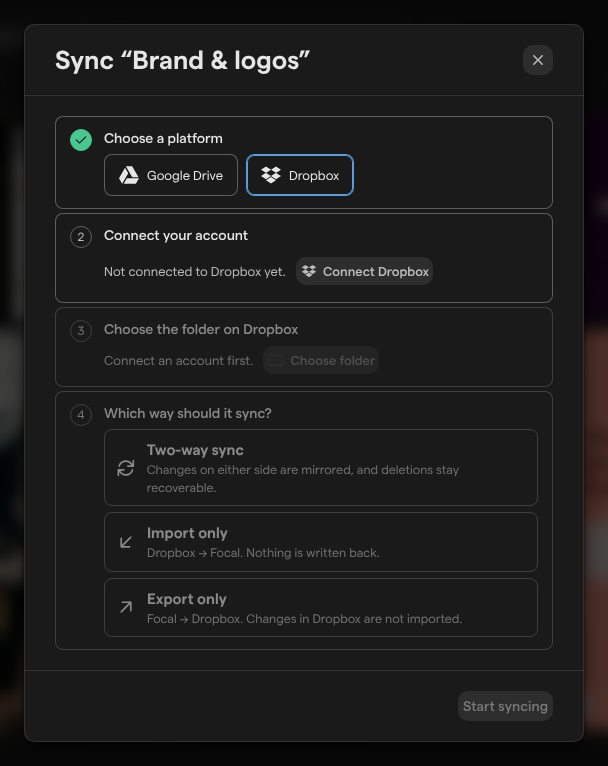
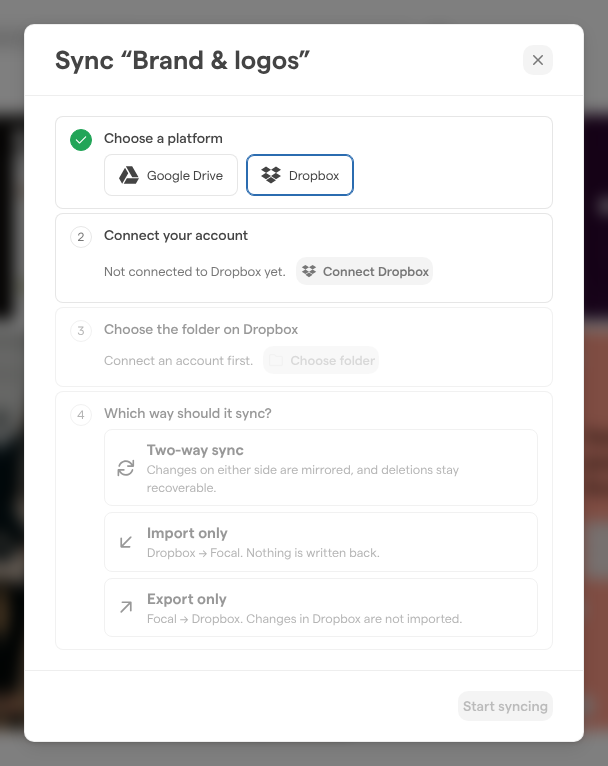
Sync “<folder name>”dialog opens with four steps. - Under Choose a platform, click Dropbox.
- Under Connect your account, click Connect Dropbox and sign in to Dropbox in the window that opens. When you are back in Focal, the step reads “Connected to Dropbox” with the account’s email address. If you already connected Dropbox before, this step is done for you.
- Under Choose the folder on Dropbox, click Choose folder and pick the folder from your Dropbox’s folder tree, or find it with Search folders by name.
- Under Which way should it sync?, choose one of the three directions (see the next section):
- Two-way sync
- Import only
- Export only
- Click Start syncing.
To use a different Dropbox account, click Disconnect in step 2 and connect again. Once the sync starts, the folder’s Sync button shows the Dropbox logo and the sync’s status.
Choose which way a Dropbox folder syncs
The direction of a Dropbox sync decides which side’s changes are copied to the other. You pick it when you set up the sync.
| Direction | What it does |
|---|---|
| Two-way sync | Changes on either side are mirrored, and deletions stay recoverable |
| Import only | Dropbox → Focal. Changes in Dropbox reach Focal; nothing is written back to Dropbox |
| Export only | Focal → Dropbox. Changes in Focal reach Dropbox; changes in Dropbox are not imported |
We recommend Import only when Dropbox is where files are delivered and Focal is where they are reviewed, and Two-way sync when people work in both places. The direction is set when the sync is created. To change it, unlink the sync and set it up again with the new direction.
What syncs between Dropbox and Focal
A Dropbox sync covers the whole folder tree: files become assets, Dropbox subfolders become folders in Focal, and the other way round, in the directions the sync allows.
- New and changed files. A new file in Dropbox arrives as a new asset; a changed file arrives as a new version of the same asset. New and changed assets in Focal are uploaded to Dropbox.
- Renames and moves follow to the other side.
- Deletions go to a trash. A file deleted in Dropbox is archived in Focal and moves to the library’s Trash. An asset archived in Focal moves to Dropbox’s own trash, where Dropbox keeps it for about 30 days. If you restore a file from Dropbox’s trash, the sync picks it up again.
- Export only and Dropbox deletions. On an Export only sync, a file someone deletes in Dropbox stays deleted there; the asset stays in Focal and stops syncing.
To open a synced asset in Dropbox, add the External Links column to the library table: it has Open file in Dropbox and Open containing folder in Dropbox links. See Library views for choosing columns.
Check a Dropbox sync’s status
The status of a Dropbox sync is on the synced folder’s toolbar button, which shows the Dropbox logo and a small badge. Hover over it to read the state, or click it to open the sync’s panel. Everyone who can use the asset library can open the panel.
The panel shows the Dropbox folder’s path (click it to open the folder in Dropbox), the direction, such as “Two-way sync with Dropbox”, how many folders and files are synced, and one of these states:
- “Up to date”: both sides match.
- “Syncing”, with the number of transfers running and queued, or “Checking for changes…”.
- “1 item needs attention” or
<n> items need attention: some files could not be synced. The panel lists why, such as “No permission for this file” or “Unsupported file type”, often with what to do about it. - “Paused”, “Reconnect needed” or “Dropbox folder missing”: the sync has stopped. See the sections below.
Inside a subfolder of a synced folder, the panel says “You are in a folder inside a synced folder” and links to the root folder, where the sync is managed.
Pause, resume or sync a Dropbox folder now
A space owner or an organization admin can stop and restart a Dropbox sync from its panel without removing it. Open the synced top-level folder and click its sync button.
- Pause stops the sync. Nothing changes on either side while it is paused, and the panel shows “Paused”.
- Resume restarts it and catches up on everything that changed while it was paused.
- Sync now checks both sides for changes straight away instead of waiting. Sync now is for the person whose Dropbox account the sync runs on.
Reconnect Dropbox
A Dropbox sync stops when Focal can no longer sign in to the Dropbox account it runs on, for example when the sign-in has expired or Focal’s access was removed in Dropbox. The panel then shows “Reconnect needed” and says the Dropbox connection needs to be re-authorized.
- Open the synced top-level folder and click its sync button.
- Click Reconnect Dropbox and sign in to Dropbox again.
The folder resumes syncing on its own once the account is reconnected. Sign in with the Dropbox account the sync was set up with, or another account that can reach every synced folder. Only an organization admin, or the space owner who connected the account, can reconnect it.
Stop syncing a folder
Unlinking a Dropbox sync removes the connection between the two folders and leaves every file where it is, in Dropbox and in Focal. The assets stay in the library as ordinary assets.
- Open the synced top-level folder and click its sync button.
- Click Unlink.
- Click Unlink this folder to confirm.
Only a space owner or an organization admin can unlink a sync. To sync the folder again, set it up again with Sync.
Delete a folder that syncs with Dropbox
Deleting a folder in the asset library archives it and moves it to the Trash, but a Dropbox sync changes what the Delete folder dialog lets you do. The dialog checks whether the folder, one of its subfolders or a parent folder has a Dropbox sync that would move files to Dropbox’s trash: a Two-way sync or an Export only sync. An Import only sync on a parent folder leaves Dropbox untouched, so the dialog skips it.
- Space members see the connected syncs listed, and the dialog asks them to bring in a space owner: “Ask a space owner to turn these off before this folder can be deleted.”
- Space owners see the folder’s own syncs and those on its subfolders, each with an Unlink button, and confirm once they are unlinked. Nothing in Dropbox is deleted by unlinking.
- Space owners deleting a folder inside a synced folder can confirm right away. The dialog warns that the files in the folder will also be moved to the Dropbox trash, because the parent folder is synced.
A folder that had its own Dropbox sync can be restored from the Trash with its assets. Its sync stays paused until a space owner reconnects it.
Who can set up and manage a Dropbox sync
Setting up and changing a Dropbox sync is reserved for space owners and organization admins.
| Action | Who can do it |
|---|---|
| See a sync’s status | Everyone who can use the asset library |
| Set up, pause, resume or unlink a sync | Space owners and organization admins |
| Sync now | A space owner or organization admin whose Dropbox account the sync runs on |
| Reconnect Dropbox | Organization admins, and the space owner who connected the account |
A space member sees a greyed-out Sync button on top-level folders; hovering over it reads “Only organization admins and space owners can set up sync”. The asset library, and with it Dropbox sync, is for space owners, space members and organization admins. See Roles and permissions.
Limits of a Dropbox sync
Focal enforces these rules when you set up a Dropbox sync:
- One sync writing into a folder. A Focal folder can have one Two-way sync or Import only sync. Extra Export only syncs on the same folder are allowed.
- One Focal folder per Dropbox folder. Each Dropbox folder syncs with one Focal folder. Picking a Dropbox folder that is already synced shows which Focal folder it syncs with.
- A live Dropbox folder. The folder you pick has to exist in Dropbox, outside Dropbox’s trash.
- Outside the self-serve trial. Google Drive and Dropbox sync are turned on by us: in a self-serve trial the Sync button is greyed out, and its tooltip asks you to contact us.