Search
Search is how you find assets in the asset library: a search panel at the top of the library where you type a word, pick filters, or look for assets that resemble another one. You would use it to pull up every approved video for one platform, find a file by part of its name, or find all the assets that mention a product in their text or speech.
Every filter you pick shows as a chip under the search bar, and the library shows only the assets that match all of them. A search always covers every subfolder of the place you search in, and the results show assets only, never folders. To keep a search for later, save it as a library view.
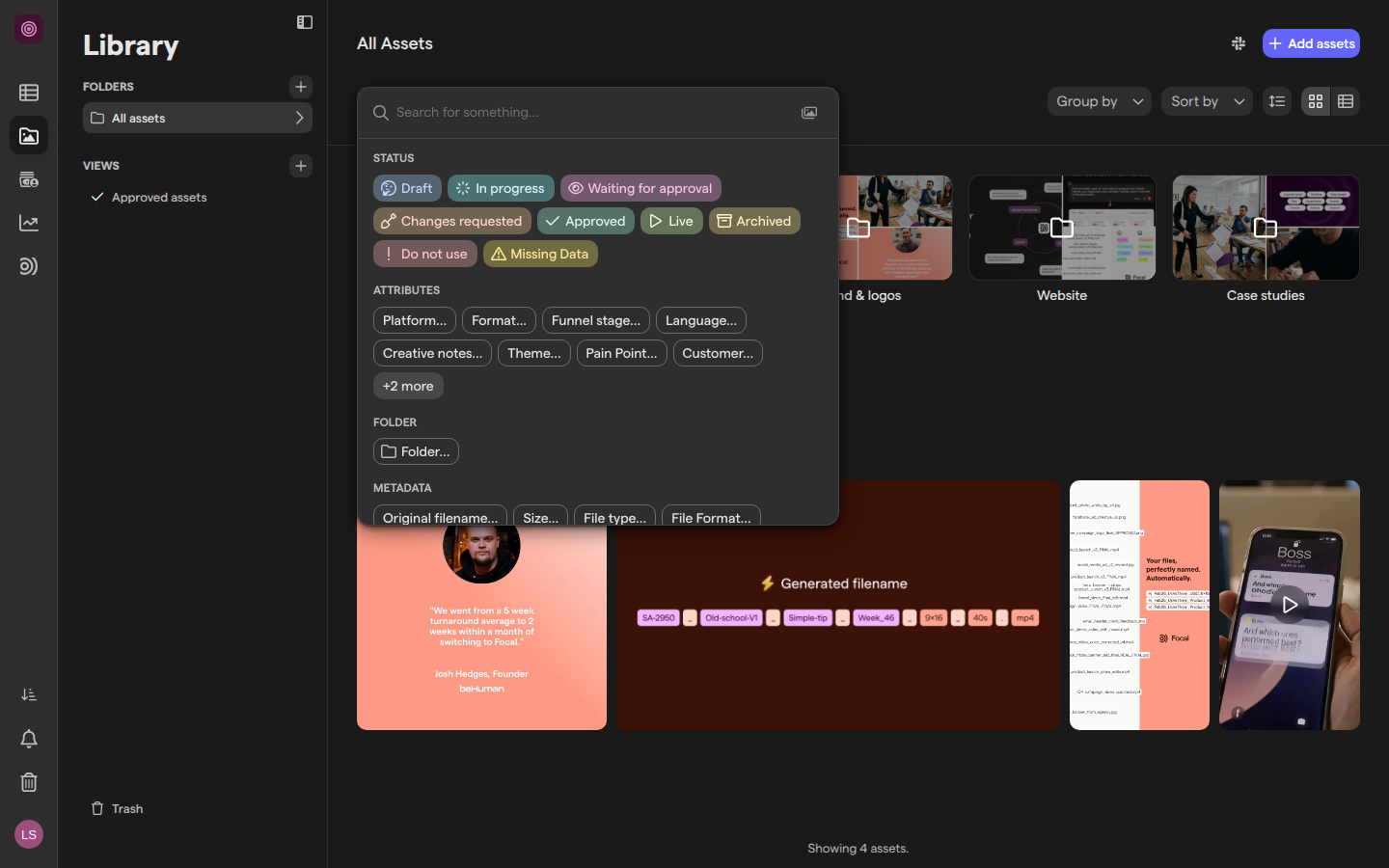
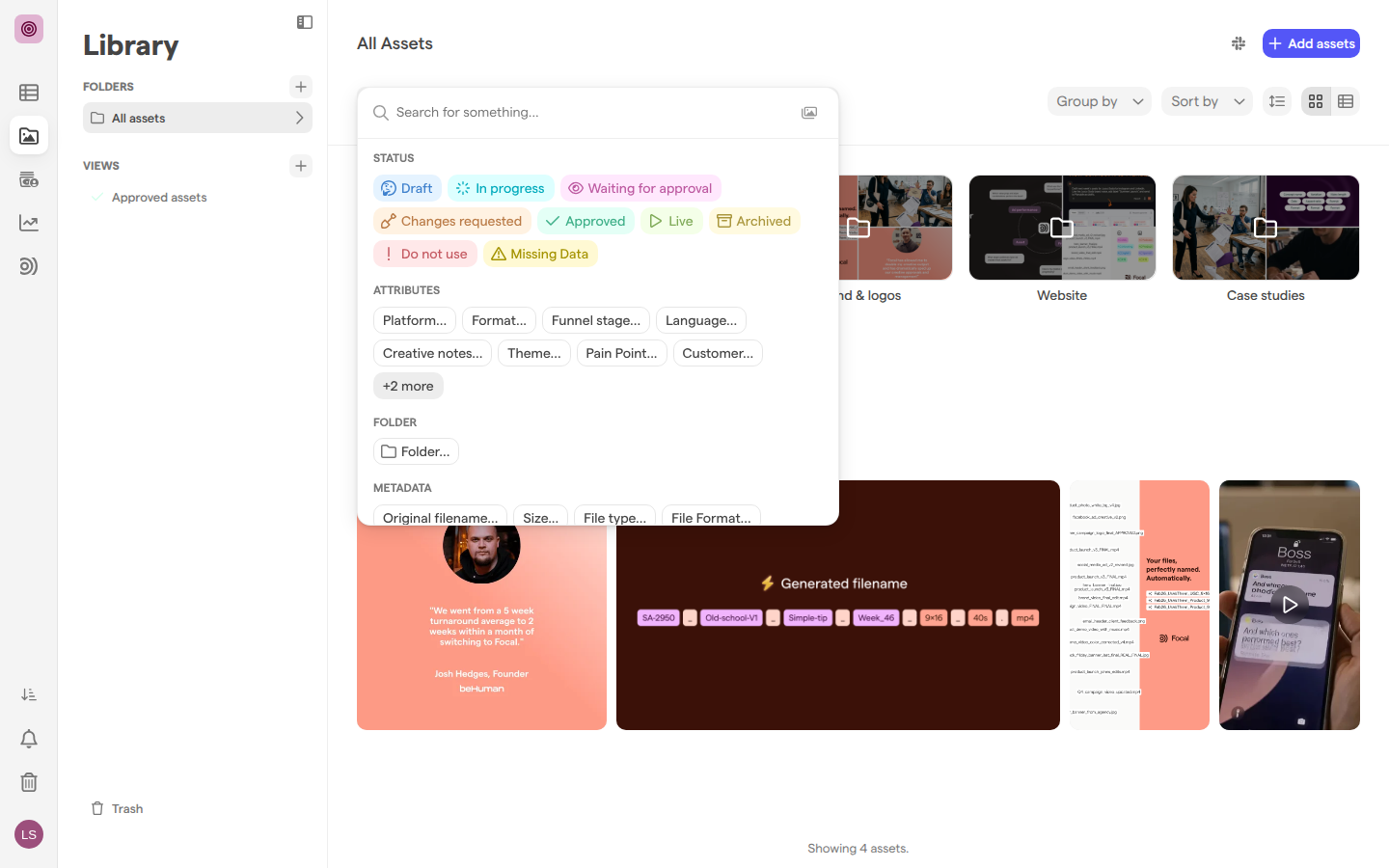
Open the search panel
The search panel is the list of filters that opens from the search bar in the library. The bar sits above the assets and says what it will search: “Search all assets” at the top of the library, “Search in” and the folder’s name inside a folder, or “Search in” and the view’s name inside a library view.
- Go to Assets in the sidebar.
- Click the search bar.
- Type in Search for something… to narrow the panel to matching filters and values, or scroll the panel to pick one.
- Press Escape to close the panel.
The panel groups its filters under headings:
- Status
- Attributes
- Folder
- Metadata
- Created by
- Dates
- Ad engagement
- Ad performance
- Ad
A group with many entries shows the first few and a +N more button; Show less collapses it again. You can move through the panel with the arrow keys and pick the highlighted entry with Enter.
Search by name or content
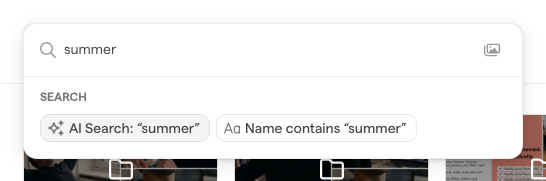
A text search finds assets by their name or by what they contain. Type a word in the search panel and the Search group offers two ways to use it:
- AI Search looks in the asset’s name and, when AI is turned on for the space, in the text Focal reads from images and video frames, in the transcript of speech, and in what the asset shows.
- Name contains matches the word against asset names only.
- Open the search panel.
- Type a word, such as a campaign or product name.
- Click AI Search: “…” or Name contains “…”, or press Enter to pick the highlighted one.
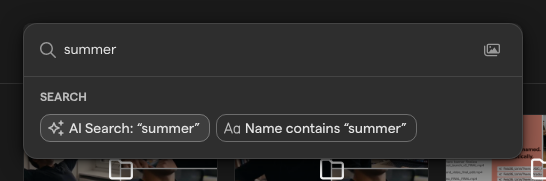
If you paste an asset’s ID, the panel offers Search by ID, which shows only that asset.
Search with AI
AI Search finds assets by what is in them, not only by what they are called. Where Name contains matches the letters you type against asset names and nothing else, AI Search also looks at what media analysis found in each asset:
- its name, the names of the folders it sits in, and the summary media analysis wrote for it
- text shown in images and video frames, and the transcript of speech
- what the asset shows, so a search for a scene or an object can find assets whose names never mention it
- Open the search panel.
- Type what you are looking for, such as a product, a scene or words shown on screen.
- Click AI Search: “…” under Search.
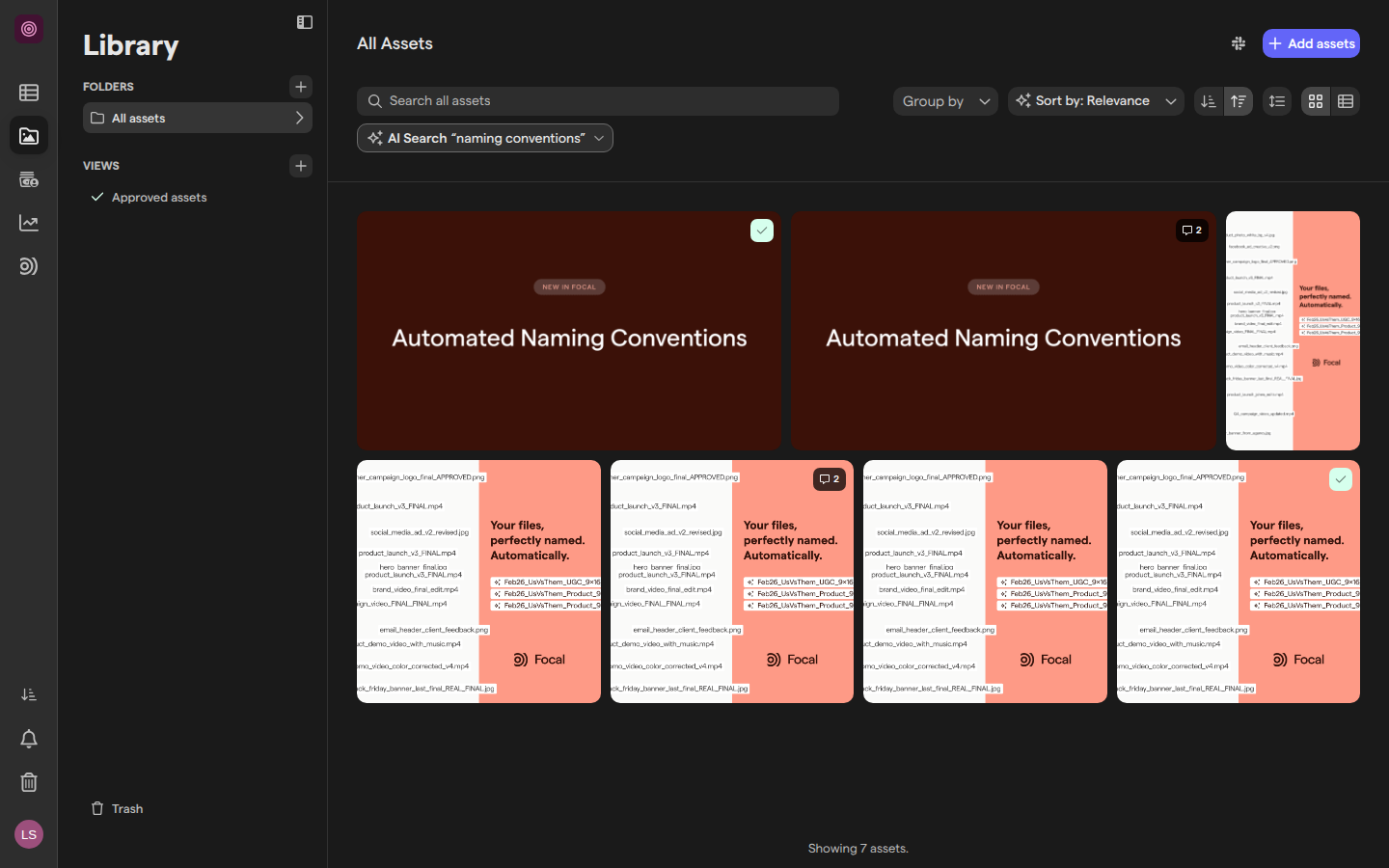
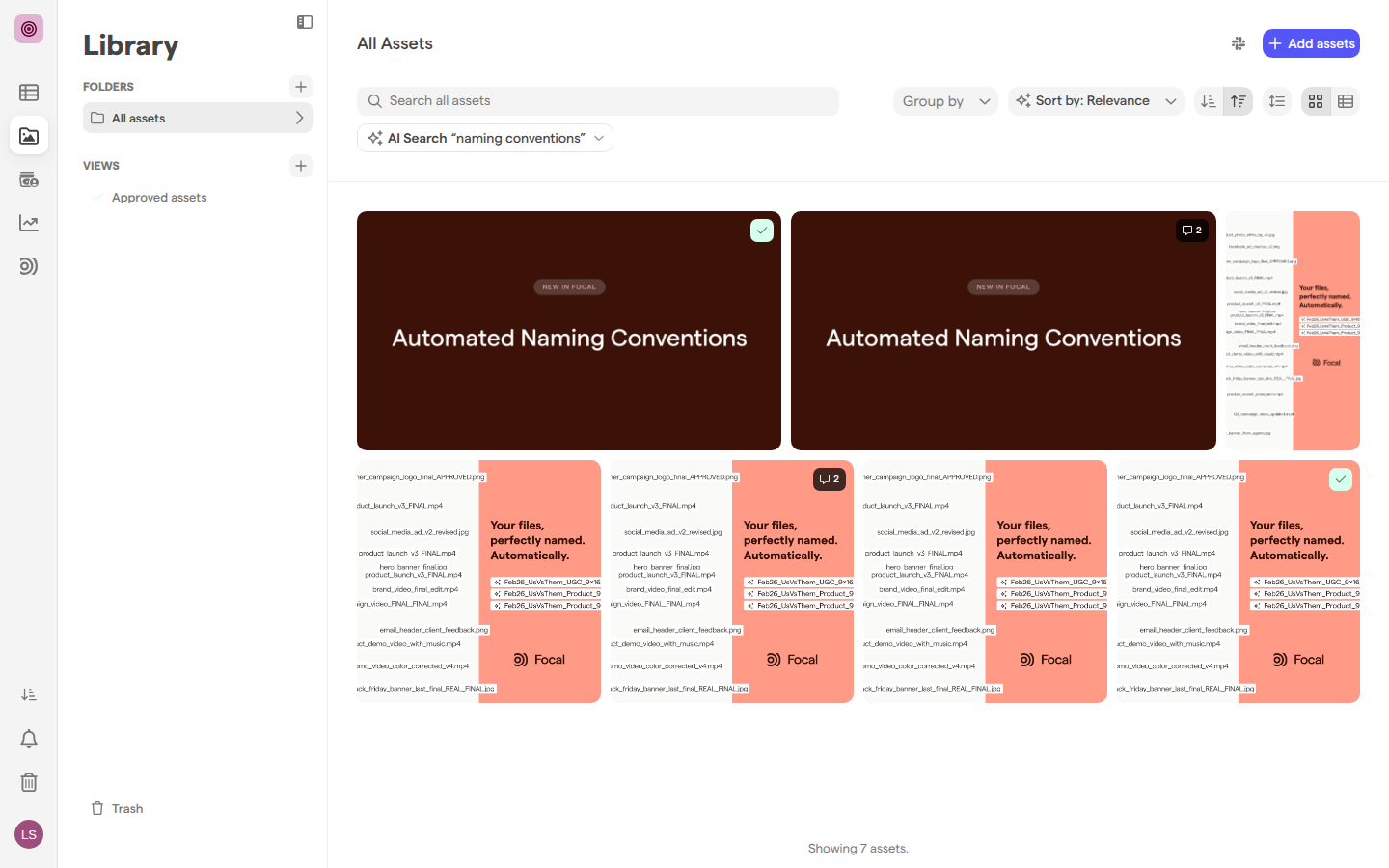
AI Search ranks what it finds: outside a saved view, picking it sorts the results by Relevance, best match first, and Sort by offers Relevance only while such a search is active. To look for several things at once, separate up to three of them with commas, such as beach, sunset. A search that looks like a file name, such as hero_v2.png, matches names only.
Note: Text, speech and what an asset shows are searched only while AI is turned on for the space (see AI settings). With AI off, AI Search matches mostly on names.
Filter by status and attributes
Filters narrow the library to assets with a given value. The Status group lists the space’s asset statuses, set up in Statuses: click one, such as Approved, to filter by it at once. Pick a second status and the chip reads “Status is Approved Live”: an asset with either status matches.
Media attributes sit under Attributes. A Tags attribute is an attribute whose values are a set of colored options, for example a Platform attribute with the values Meta, TikTok and LinkedIn; Text, Number, Date and person attributes get their own kind of filter.
- Open the search panel.
- Under Attributes, click the attribute, such as Platform….
- Pick one or more values.
- To exclude those values instead, click is and choose is not.
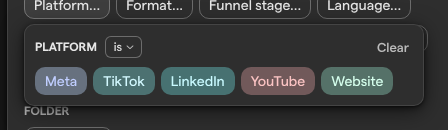
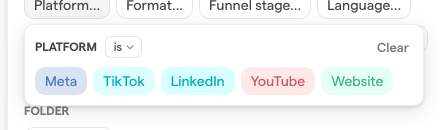
Typing a tag’s name in the panel finds it too: typing “tik” offers TikTok under the Platform heading. A space owner can list a Tags attribute’s values directly in the panel, under the attribute’s own heading, with the attribute setting Show tags as clickable suggestions in search.
Filter by file details, dates and ads
Beyond statuses and attributes, the search panel filters on facts Focal records about every asset.
-
Folder: Folder… lists the library’s folders to search in.
-
Metadata:
- Original filename…
- Size…
- File type… (Image, Video, Playable, File)
- File Format…
- Aspect ratio…
- Width…
- Height…
- Video duration…
- Frame rate…
- Creative ID…
Size and duration accept short forms such as
100mb,10s,1minor2h. -
Created by: the people in the space.
-
Dates:
- Created at…
- Valid from…
- Expires at…
Each has is after, is before or is between and a calendar.
-
Ad engagement, Ad performance and Ad: results from the ads an asset runs in, such as:
- Clicks…
- Spend…
- Hook Rate…
- Meta status… (Live or Not Live)
- Campaign name…
- Ad set name…
These match only assets linked to ads, the same data behind Reports.
Number filters offer:
- is over
- is under
- is exactly
- is not exactly
Text filters offer:
- contains
- does not contain
- is and is not, on some filters
Type the value and click Apply.
Find similar media
A similarity search finds assets that look like a reference asset. In the app the feature is labelled “Find similar media”; it finds assets.
- Open the search panel.
- Click the image icon at the right end of the search box. Its tooltip reads “Find similar media”.
- Drop a file on the box, or click Upload file and choose one.
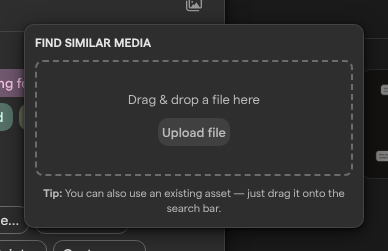
To start from an asset already in the library, drag it onto the search bar; the bar reads “Drop to find similar media”. If you drag several, only the first one is used. An uploaded file is analyzed before the search runs, and the popover shows “Analyzing…” until then. As with AI Search, the results are sorted by Relevance.
Change or clear filters
Each filter shows as a chip under the search bar, such as “Status is Approved” or “File type is Image”. The chips stay after the panel closes, so you can see what the library is showing.
- Click a chip to reopen its filter and change the values or the operator.
- Click Clear in the filter to remove all its values.
- Click the small x on a chip’s value to remove that value.
- With three or more filters, click Clear all to remove every one.
When no asset matches, the library says “No results found” and asks you to adjust your filters.
Search inside a folder or view
A search runs in the place you start it. Open a folder and the bar reads “Search in” and the folder’s name: the search covers that folder and every folder inside it, and the Folder filter is left out of the panel. When nothing matches in the folder, the library offers Search the full library, which runs the same filters across the whole library.
Inside a library view, a search narrows the view’s own results. The view’s saved filters show as chips that cannot be removed from there; the pencil beside them, Edit view, opens the view’s editor.
The asset library’s Trash page has its own, simpler search box, Search the trash, without the search panel’s filters.
Share a search
A search is part of the page’s address, so the filters survive a reload and travel with the link. To share a search, copy the address from the browser and send it to someone in the same space; they see the same filters on their own screen. To keep a search in the sidebar where the whole team can find it, save it as a library view.
How filters combine
Filters in a search combine in two ways:
- Different filters narrow each other. An asset has to match every chip. “Status is Approved” with “Platform is Meta” shows only approved assets tagged Meta.
- Values inside one filter widen it. “Status is Approved Live” matches an asset with either status.
An is not or does not contain filter removes the assets that match it.
Who can search the library
Library search is for the people who work in the library: space owners and members. Space guests have no access to the asset library: a guest’s navigation has no Assets link, and the library does not open for them, so neither does its search panel. Searching and filtering never change an asset, so any member can use every filter, whether or not they can edit assets. See Roles and permissions for what each role can do.