AdManage export
AdManage export sends images and videos from Focal’s asset library to AdManage (admanage.ai), into your company’s AdManage library, where they are ready to use in ads. Use it when creative work is approved in Focal and the people launching ads work in AdManage, so nobody has to download the files and upload them again.
Unlike the Meta, TikTok and YouTube exports, nobody signs in. An organization admin adds an AdManage API token to Focal once, and everyone exporting from the spaces that token allows uses it. You start an export from the selection toolbar, pick a destination, and Focal sends AdManage a copy of every selected asset. The asset in Focal does not change. AdManage export is one of the destinations described in Exporting assets.
Add an AdManage token
An AdManage token is the API key that lets Focal upload to your company’s AdManage account. It is stored as an external token of the organization, not as anyone’s personal sign-in, and only organization admins can add one. If you are not an admin, ask one to follow these steps.
- In AdManage, copy an API key from admanage.ai/connect.
- In Focal, open Space Settings → Organization → External tokens (External tokens settings).
- Click Add token. The Add external token dialog opens.
- Type a name in Token name, such as the AdManage account it belongs to.
- Under Service, choose AdManage (admanage.ai).
- Paste the API key into Paste token.
- Leave Active on, and click Add token.
The token is stored encrypted: Focal shows only its last four characters from then on, and the key itself can’t be viewed again. When the Export to AdManage dialog sends an admin to this page with its Add AdManage token button, the Add external token dialog opens with AdManage (admanage.ai) already chosen.
Choose which spaces can use an AdManage token
An AdManage token can be used in every space of the organization, or only in some. In the Add external token dialog, or later with Edit in the token’s menu, an organization admin decides this under Spaces:
- By default the token can access every space.
- Turn on Restrict to specific spaces, then turn on each space that may use the token. With no space turned on, the token can’t be used in any space.
On the External tokens page, each token shows “Active” or “Disabled”, how many spaces it can reach, and when it was last used. The token’s switch turns it on or off. In the token’s menu, Rotate token replaces the key with a new one, which Focal uses at once, and Delete removes the token for good, and integrations using it stop working.
The export only offers tokens that are active and allowed in the space you export from. A disabled token, or one limited to other spaces, looks to everyone in that space as if there were no token at all.
Choose an AdManage token
The Export to AdManage dialog starts by finding a token to export with. What it shows depends on the tokens your organization has for the current space:
- No usable token: the dialog asks for an AdManage API token and has an Add AdManage token button that opens the External tokens page. Only organization admins can open that page; anyone else should ask an admin to add a token or allow an existing one in this space.
- One token: the dialog connects with it straight away and goes on to the destinations.
- Several tokens: the dialog asks which one to export with and lists each token by its name and the last four characters of the key. Click the one to use.
Export assets to AdManage
Exporting to AdManage uploads the selected assets to one AdManage destination. There is no folder to choose.
- Open Assets and select the assets to send. Hold ⌘ (Ctrl on Windows) and click to add more, or hold Shift to select a range.
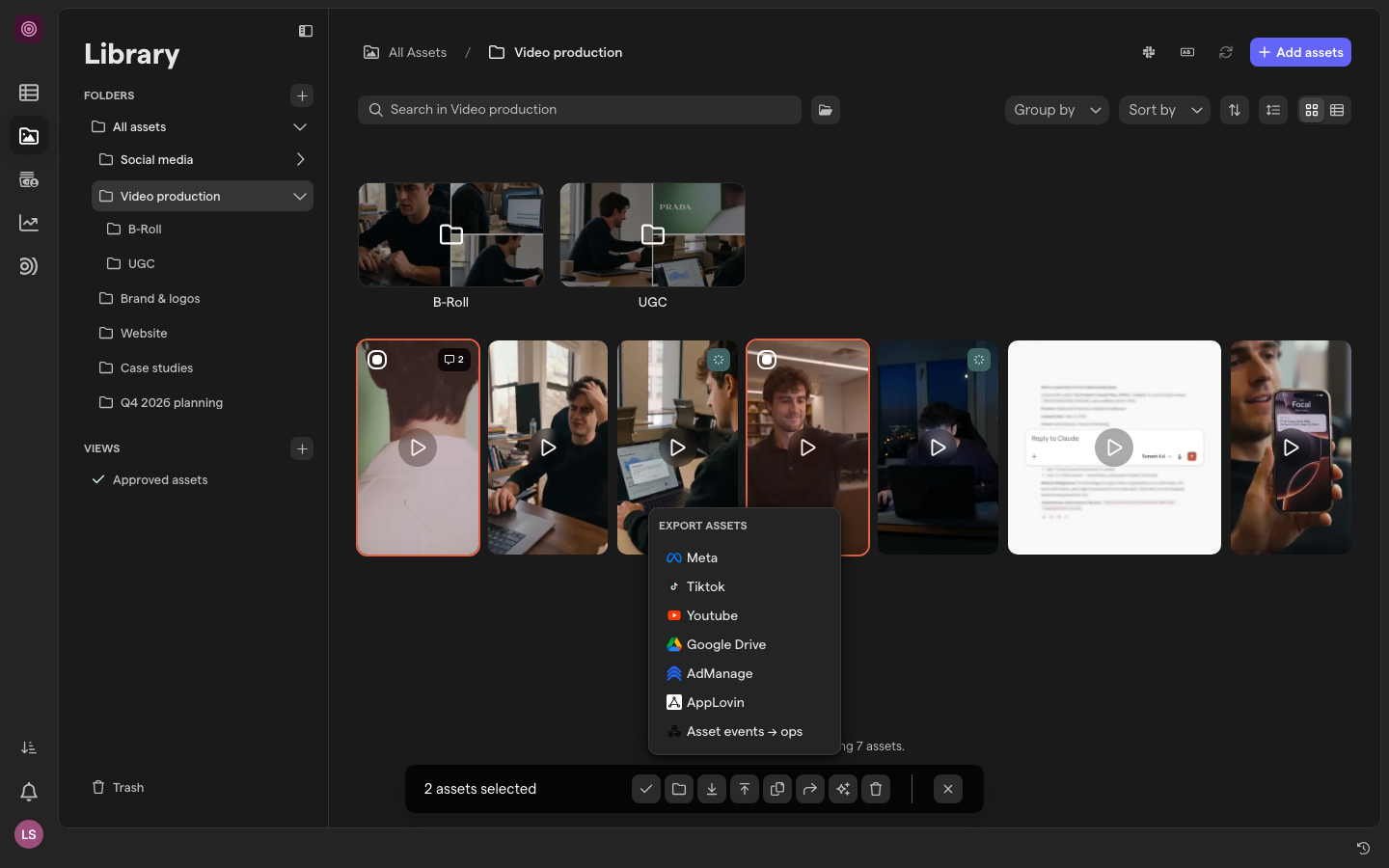
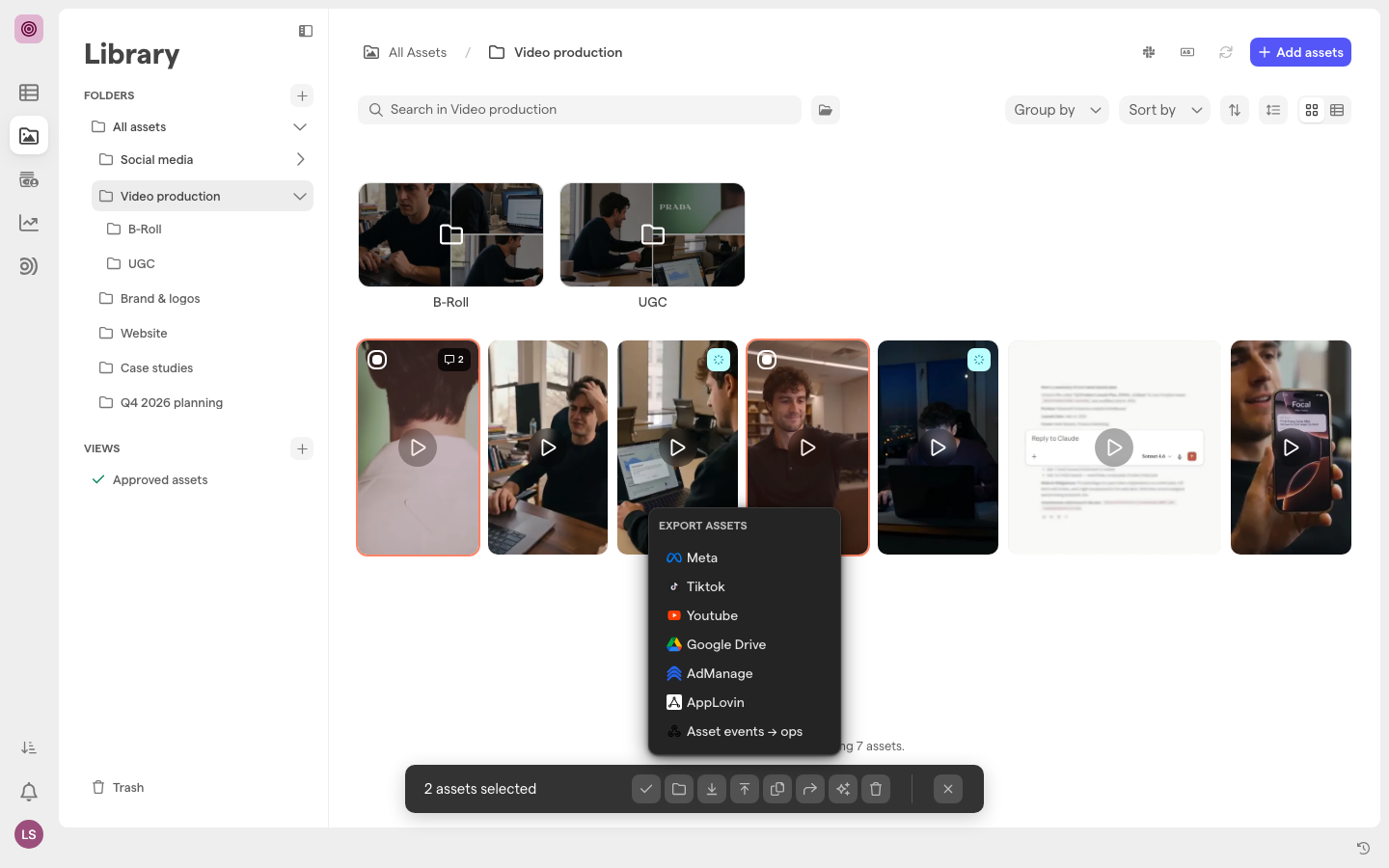
- Click the export button in the selection toolbar (Export asset or Export assets) and choose AdManage.
- If the dialog lists several tokens, click the one to use.
- Click a destination: AdManage Library or one of your ad accounts.
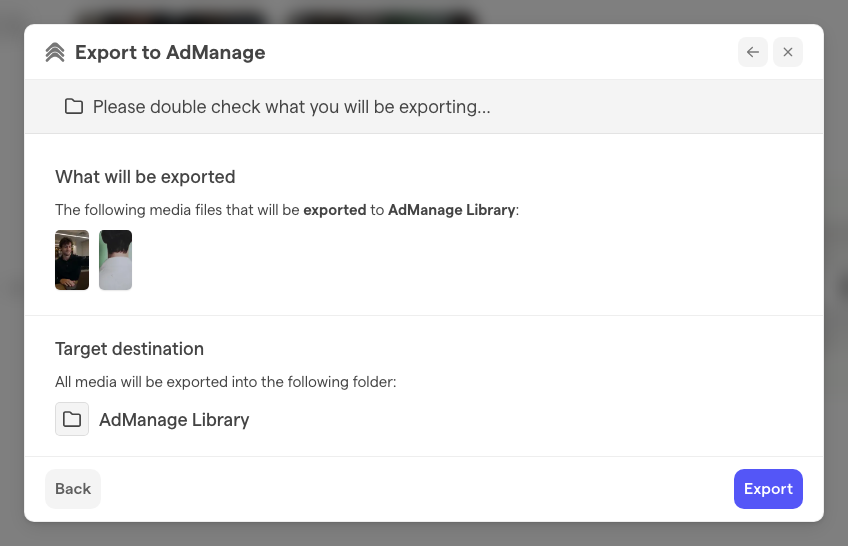
- Check the review step. Under What will be exported are thumbnails of the selected assets; under Target destination, the destination you picked. Click Back to pick another one.
- Click Export.
- Click Close Modal.
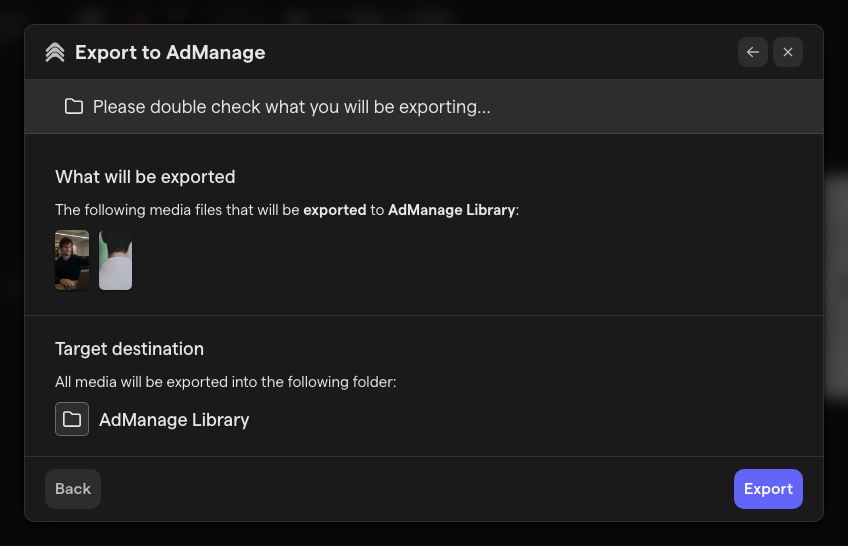
Focal uploads the assets in the background, one after another, so you can keep working. The confirmation after Export is the last thing Focal shows: there is no progress or completion message in Focal, so check the AdManage library to see the files arrive.
AdManage destinations
The destination list in the Export to AdManage dialog starts with AdManage Library, your company’s media library in AdManage. Below it come the ad accounts connected in AdManage, each with the Meta, TikTok or AdManage icon and the channel it belongs to. An ad account without a name is listed by its ID. The dialog lists up to 100 ad accounts.
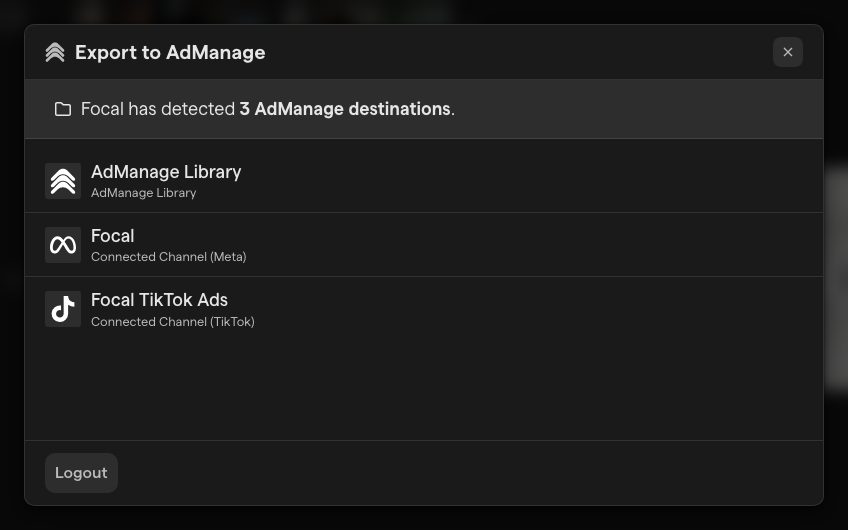
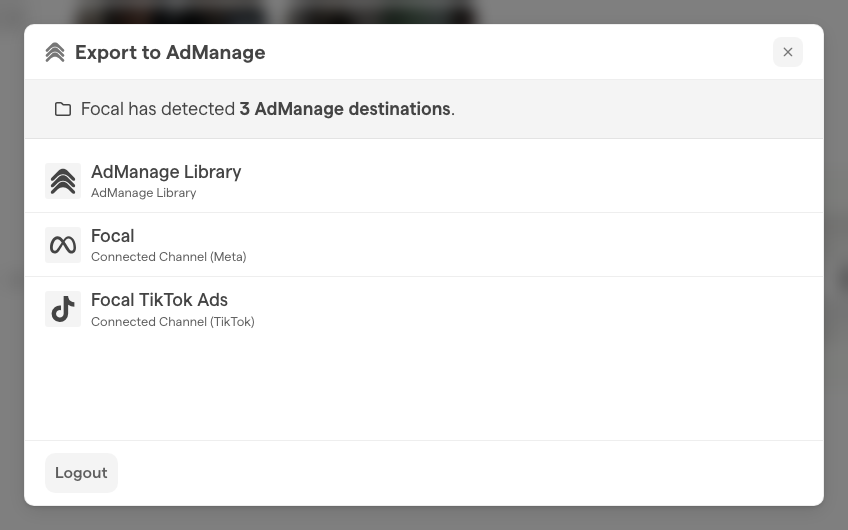
For now, every destination uploads to the AdManage library, including an ad account. AdManage ties media to an ad account only when an ad is launched with it, so after an export to an ad account, look for the files in the AdManage library, not under the ad account.
What happens when you export to AdManage
An export to AdManage sends AdManage a copy of each asset’s original file. For each asset, Focal creates a private download link and passes it to AdManage, which fetches the file itself, under the asset’s name in Focal. Each link expires after one hour. With each file, Focal also tells AdManage that it came from Focal, the asset’s ID in Focal, and the email address of the person who exported it.
The asset in Focal does not change: it keeps its versions, attributes and comments, and nothing about the export is added to it. Files sent to AdManage stay there; remove them in AdManage if needed.
Focal reads the token again as each asset is uploaded. If an admin disables, deletes or restricts the token while an export is still running, the assets not yet uploaded fail, and the ones already uploaded stay in AdManage. After Rotate token, the rest of the export uses the new key.
Troubleshoot AdManage exports
Most problems with AdManage export come from the token, and the dialog says little about the cause:
- “Add an AdManage API token to continue” although your organization has a token: the token is disabled, or limited to other spaces. Ask an organization admin to turn it on or allow your space.
- “Please connect AdManage destination to continue.”: Focal could not reach AdManage with the token, for example because the key was removed in AdManage or AdManage did not answer. The dialog also returns here when it was left open for more than an hour. Click Connect your AdManage destination to try again. If it keeps failing, ask an organization admin to rotate the token with a new key from admanage.ai/connect.
- Export does nothing after you click it: the selection is probably over the 100-asset limit. Close the dialog, select fewer assets and start again.
- Files missing in AdManage after the export confirmation: an asset still processing in Focal, or a token turned off during the export, makes that asset fail without a message in Focal. Wait until the asset has finished uploading, then export it again.
Who can export to AdManage
Space owners, space members and organization admins can export from the asset library. Assets in a board’s tasks can be exported to AdManage from the board’s selection toolbar too, by people with Full Access, Edit Access or Upload Access to the board’s view. See Sharing boards.
Only organization admins can add, edit, rotate or delete AdManage tokens; the External tokens page is not shown to anyone else. See Roles and permissions.
An export only includes assets you have access to in Focal.
Formats and limits of AdManage exports
AdManage export works within these limits:
- Formats: images and videos. Focal does not restrict file formats or sizes for AdManage; AdManage’s own limits apply.
- Count: up to 100 assets per export. Split a larger selection into several exports.
- Ready assets only: an asset must have finished uploading and processing in Focal.
- Ad accounts: the destination list shows up to 100 ad accounts.
AdManage export and workflows
The same AdManage token also serves Upload to AdManage, a workflow step that sends assets to the AdManage library automatically, for example every asset approved in a review. See Actions. Meta, TikTok and YouTube exports use a personal sign-in instead of a token; see Meta ads export, TikTok export and YouTube export.