Agent step
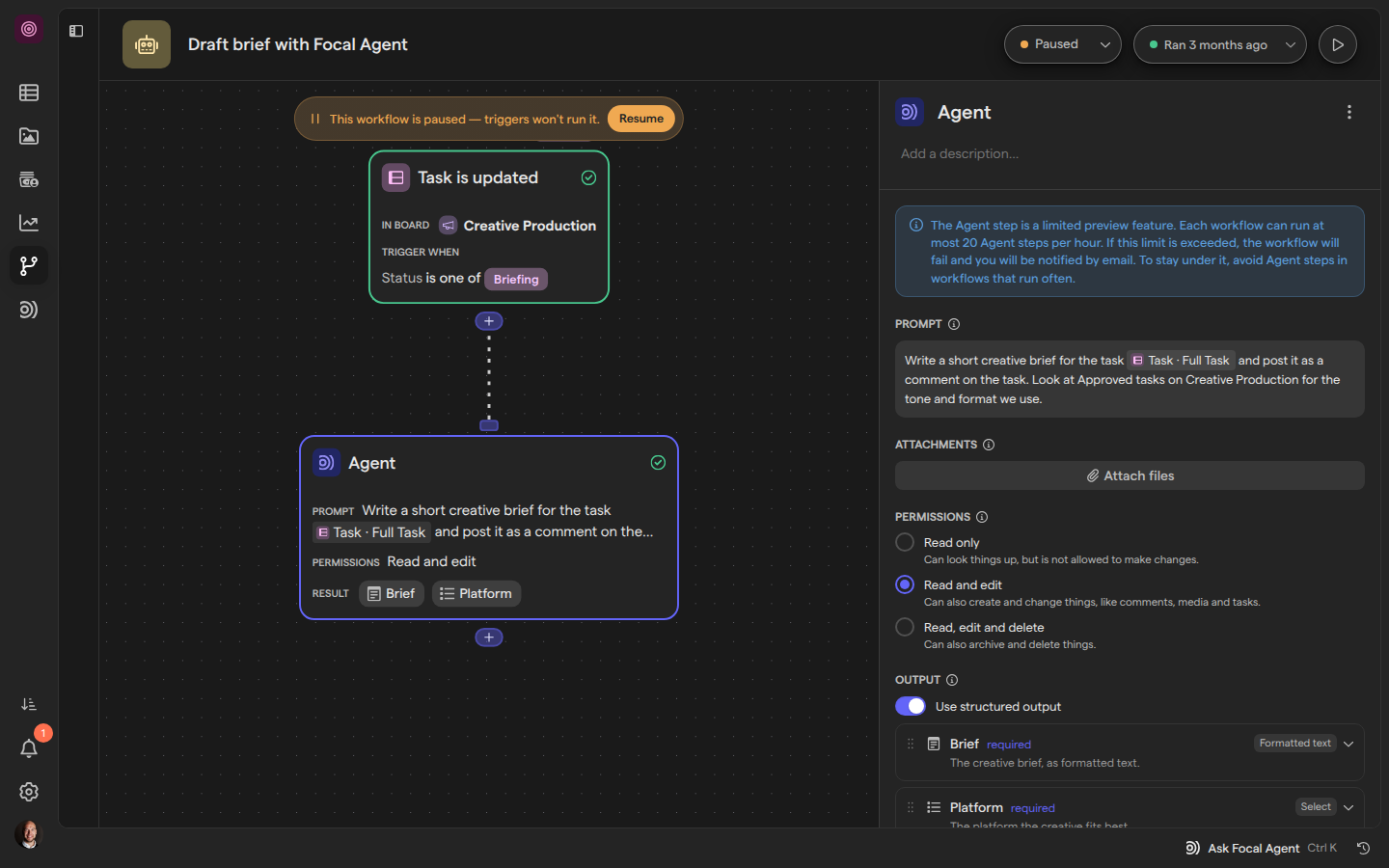
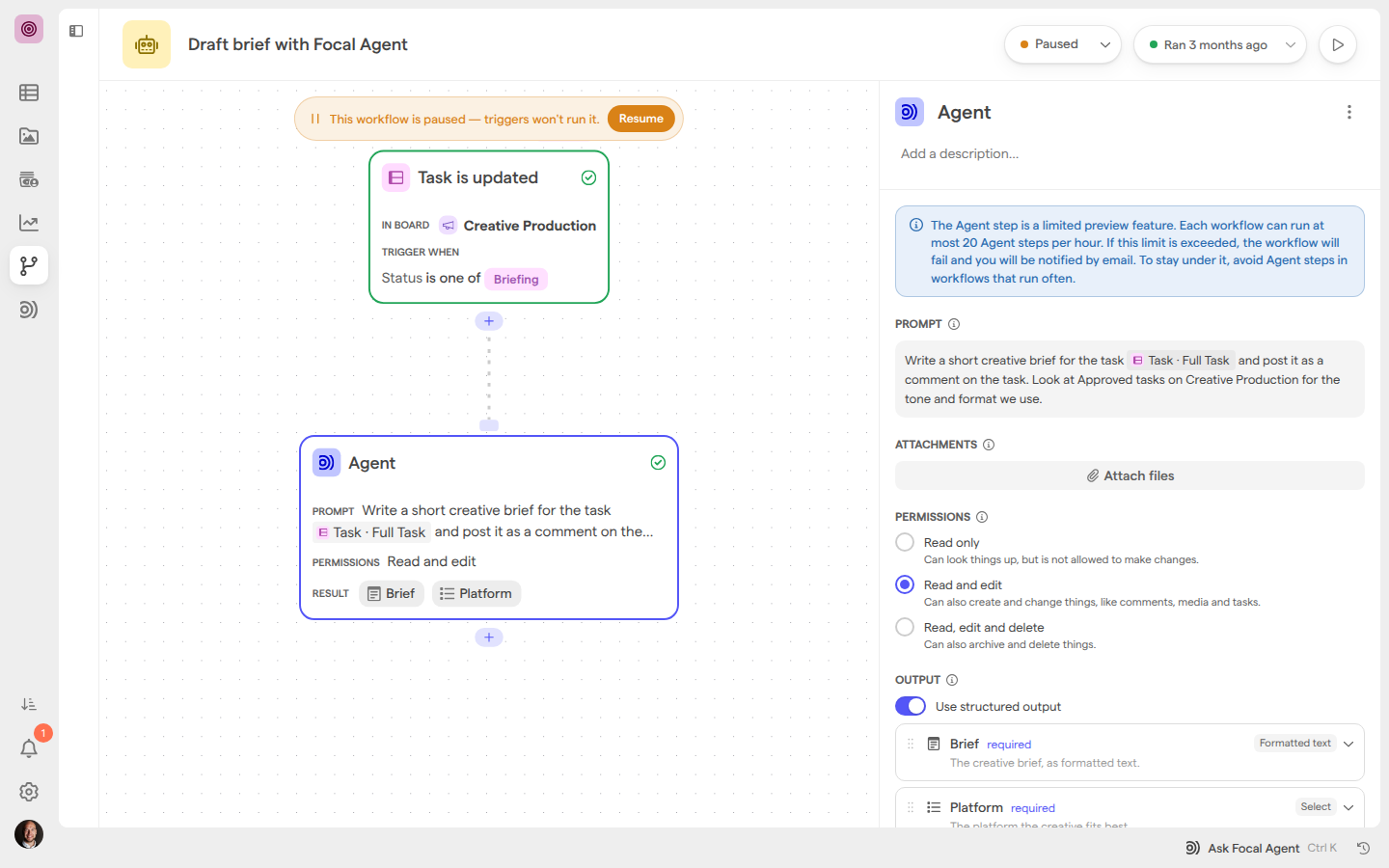
The Agent step is a step in a workflow that gives Focal Agent a task in plain words and lets it do the work on its own. The agent reads what it needs in the space, makes the changes you allow, and returns a result that later steps can use. Use it for work that needs looking things up or judgment along the way, such as drafting a brief for a task in the style of earlier approved ones.
The Agent step is a limited preview. Each Agent step has four settings: a prompt, files attached to it, a permission level, and the shape of its output.
Choose the Agent step or AI prompt
The Agent step and AI prompt both send a prompt to an AI model, but they do different jobs.
- AI prompt answers only from the data you put in its prompt. It cannot look anything up or change anything. Use it to write, summarize, describe or rewrite something an earlier step already has, such as a caption for a video or keywords for an image.
- The Agent step can search and read across the workflow’s space, open the tasks and assets you pass it, and create, change or archive things when its permission level allows. Use it when the job means finding information first or making changes, such as reading approved tasks on a board before writing a brief and posting it as a comment.
An Agent step whose prompt already holds everything the job needs finishes about as quickly as an AI prompt step, because a single AI call answers it without starting the full agent (see How an Agent step runs).
AI prompt steps don’t count toward the Agent step’s limit of 20 agent runs per hour.
Add an Agent step
An Agent step is added from the step picker like any other action, from its AI group.
- Open a workflow from Workflows.
- Click the + under the step the Agent step should follow.
- Type
Agentin the search field, or pick AI on the left. - Click Agent. The step is added and its settings panel opens.
- Write the prompt, then choose Permissions and Output.
A new Agent step starts with Read only permissions and plain text output. Until it has a prompt, the step shows the issue “Add a prompt.” and the workflow cannot run. Adding, connecting and deleting steps is covered in Building a workflow and Actions.
Write the prompt
The prompt is the Agent step’s task, written in plain words under Prompt. Say what to do, where to look, and what the result should be.
Type @ in the prompt to insert a variable from the trigger or an earlier step. When the step runs, each variable is filled in where you placed it:
- Text, numbers, dates and other values are written into the prompt as readable text.
- Tasks and assets, single or in a list, reach the agent as references it can open, so it can read their details, columns and attributes itself.
The agent can also look at the trigger’s data and the output of earlier steps on its own, without a variable. A prompt such as “use the brief from the form” works: the agent finds the form answer in the run. Variables are the more precise choice when you know exactly which value the agent needs.
What the prompt holds decides how fast a run finishes. Each run first tries the job with one AI call that has no tools (see How an Agent step runs). That first try can’t open a task reference or look anything up, so a prompt that inserts a whole task, such as Full Task, or leaves the agent to find data in the run always needs the full agent. A single field of a task, such as its Name or a column’s value, is written into the prompt as text, and an asset the prompt references comes with its files, so the first try can use both. We recommend putting the data the job needs into the prompt, with variables for the specific values.
When a variable can’t be filled in at run time, the step fails before the agent starts.
Use skills in an Agent step
A skill is a set of written instructions Focal Agent loads when a task calls for it. An Agent step uses the space’s skills the way a chat does: the agent sees every skill set to Use automatically and loads one on its own when it fits the task. A skill with Use automatically turned off is loaded only when the prompt names it.
To make sure the agent follows a skill, name it in the prompt:
- Type
/in the Agent step’s prompt. A menu lists the skills available in the space. - Keep typing to narrow the list by name. The text can match anywhere in the name, so
/reportfindsweekly-ad-report. - Pick the skill. It is inserted as a chip, such as
/weekly-ad-report.
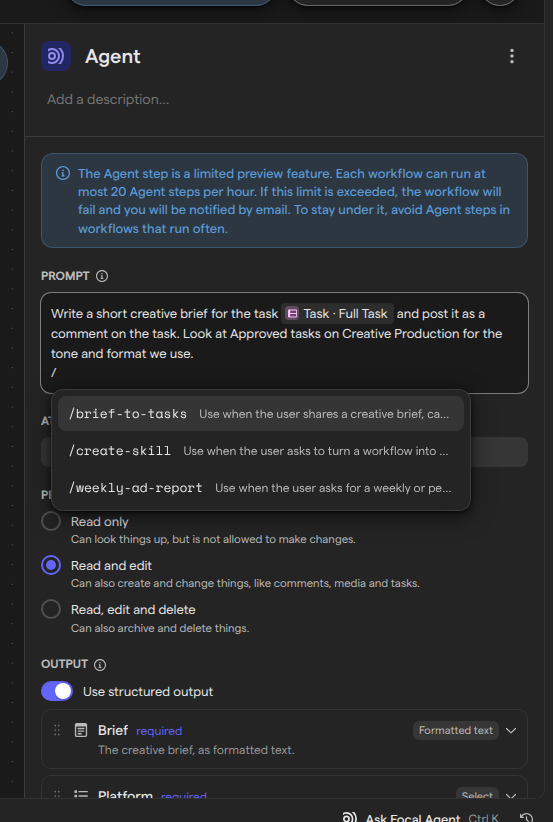
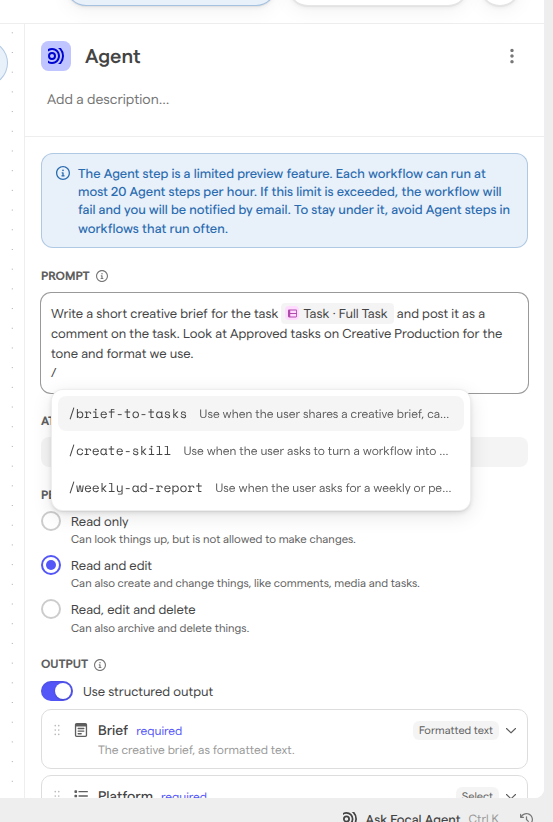
A prompt can name up to five skills. Once it has five, the menu no longer opens, and a skill already in the prompt isn’t offered again. When the step runs, each skill the prompt names is loaded before the agent starts. A prompt that names a skill always goes to the full agent, without the quick first try described in How an Agent step runs.
Attach files to an Agent step
An Agent step’s attachments are files from your computer that go to the agent with every run of the step, such as a brand guide, a brief template or a reference spreadsheet. The agent reads them the way it reads files attached to a chat message.
- Under the prompt in the Agent step’s settings, click Attach files.
- Choose one or more files.
To take a file off the step, click the × on its tile. A step takes up to 100 attachments. With more than 10, the tiles turn into a button such as 23 attachments: click it to see the files as a list, or to remove them all with Remove all.
Choose what the agent may change
The Permissions setting decides what the Agent step’s agent may change. At every level it can search and read in the workflow’s space.
| Permission | What the agent may do |
|---|---|
| Read only | Search and read. It changes nothing, so its output is the only result |
| Read and edit | Also create and change things, such as posting comments, creating tasks and assets, or updating them. It can’t archive or delete |
| Read, edit and delete | Everything above, plus archiving and deleting |
The agent only works inside the workflow’s space. It can’t read or change anything in other spaces of the organization. Changes it makes show as made by “Focal Agent”, not by the person who built or ran the workflow.
An Agent step never asks for approval. In a chat, Focal Agent asks before it changes things (see Approve or deny a change); in a workflow nobody is watching, so the permission level is the only guard. We recommend the lowest level that does the job, and Read, edit and delete only when the task is to archive or delete.
Choose the output
The Agent step’s output is what later steps can use, under the variable Agent result. By default it is the agent’s answer as plain text.
To get separate values instead, such as a brief and a platform, turn on Use structured output and define the fields:
- Click Add field.
- Choose a type: Text, Formatted text, Number, Boolean, Date, Select or JSON. From attribute adds a field based on one of the space’s media attributes, such as a Tags attribute, whose options follow the attribute.
- Fill in Label, and a Description that tells the agent what belongs in the field. The Key follows the label until you change it.
- Turn on Required if every run must fill the field.
Later steps reference each field on its own, the same way as the AI prompt step’s structured output (see Variables). Turning Use structured output off removes the fields. When the agent’s answer doesn’t fit the fields, the step fails with “The agent’s answer didn’t match the output fields”.
Skip runs that have nothing to do
An Agent step counts toward the workflow’s hourly limit each time it starts, even when the job turns out to need nothing. Two ways keep those runs short:
- The cases are known in advance, such as a task that already has a brief. Check for them with a Condition step before the Agent step. When the conditions don’t match, the Agent step is skipped and never starts.
- Telling the cases apart takes judgment. Write the condition into the prompt, such as “If the brief already says which platform it is for, change nothing”, and insert the data it depends on with
@variables, so the run’s quick first try, a single AI call without tools, can decide without the full agent. Add an output field for the answer, such as a Boolean field that says whether there was work to do, so later steps can branch on it with a Condition step.
How an Agent step runs
Every run of an Agent step starts with a quick first try: one AI call with no tools. It sees only the prompt with its variables filled in, the step’s attached files, and the files of the assets the prompt references. When that is enough for the job, the first try answers and the run ends there, much faster and cheaper than the full agent.
When the job needs more, such as a search, a task’s details or a change in the space, the first try hands the job to the full agent, which does it with its tools and the step’s permission level. The first try never changes anything and doesn’t guess data it would have to look up. If its answer doesn’t fit the step’s output fields, the full agent runs instead. A prompt that names a skill skips the first try.
What happens when the step runs
When a workflow run reaches an Agent step, the step starts the agent and waits for it to finish before the run moves on. The agent’s result then becomes the step’s output.
- The agent fails. The step fails, and so does the workflow run. The reason is shown in the run’s details, in the Error box and the step’s Error details, for example “The agent failed” followed by the cause.
- The agent’s run is interrupted by a problem on Focal’s side. The step resumes it automatically, and the agent checks what it has already done before it continues.
- You cancel the workflow run. The agent stops too, and its transcript ends with “The run was stopped.” Changes the agent already made are not undone.
Focal does not rerun a failed Agent step for you. Fix the prompt or settings, publish the workflow, and start a run again (see Runs).
See what the agent did
The agent’s transcript shows what an Agent step did in a run: the prompt it received with the variables filled in, its reasoning, each step it took (such as “Searched tasks”) and its replies. It opens from the run’s details.
- Open the workflow and click Run history in the header.
- Click the run, or Show full history and then the run.
- Under Steps, click the Agent step.
- The step opens on its Transcript tab. Click the summary line to expand every step the agent took.
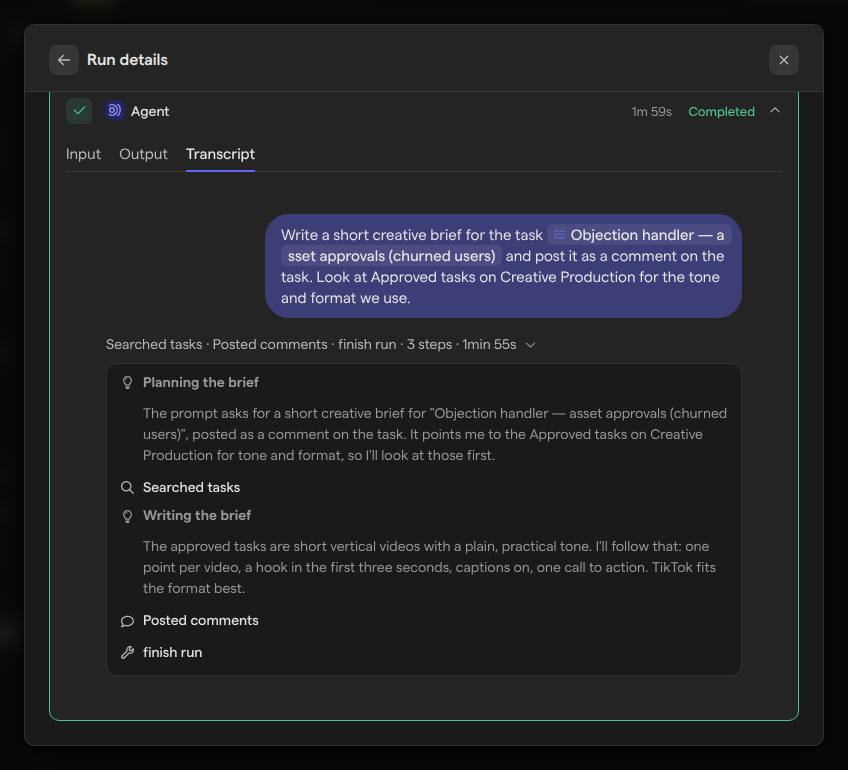
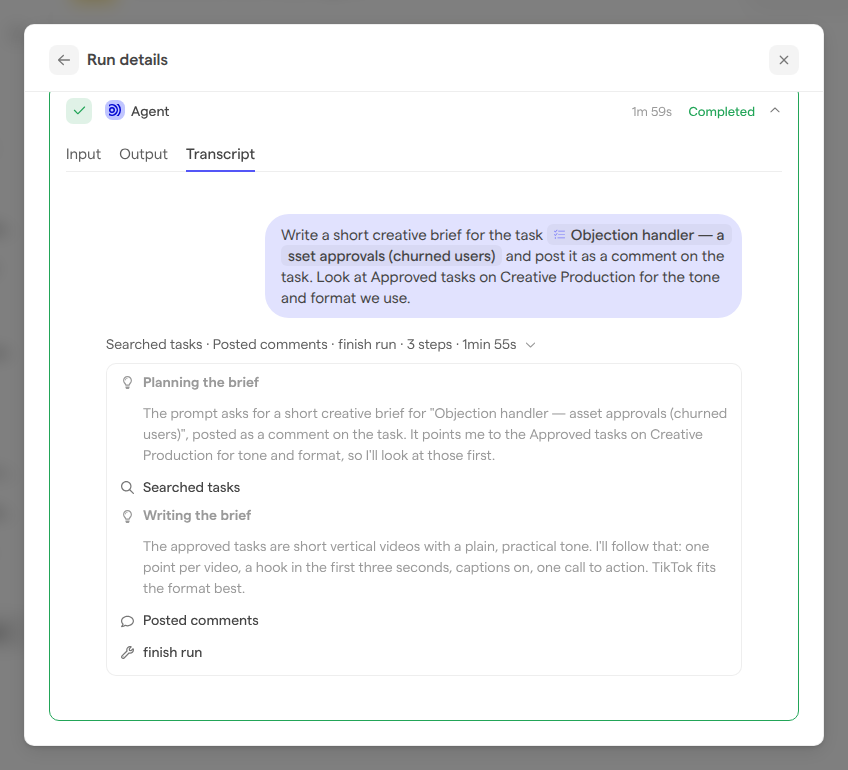
The Output tab shows the result, and Input the data the step received. While the step runs, the transcript updates as the agent works. It reads “The agent hasn’t started yet.” before the agent starts, and “The agent didn’t run for this step.” when the step ended without starting it. Anyone who can open the workflow’s runs can read the transcript.
A run answered by the quick first try, without the full agent, has a short transcript: the prompt and the answer, with no steps in between. A structured answer shows as JSON.
The step’s Logs tab shows which way a run went, under “Route”: “Answered by the shortcut, without the full agent” for a run the first try answered, or “Shortcut handed off to the agent:” followed by what the job needed that the prompt didn’t hold. “Shortcut failed, so the agent ran:” means the first try’s answer couldn’t be used.
The Logs tab also shows the prompt the step sent, with its variables filled in, under “Prompt”.
Hourly limit on Agent runs
A workflow can start at most 20 agent runs per hour, across all its Agent steps together. Every Agent step that starts counts, including runs that its quick first try answers without the full agent; a step skipped after a Condition step doesn’t. When a step would go over the limit, it fails without starting the agent, with the message “This workflow’s Agent steps started more than 20 runs in the last hour, so this one didn’t start”, and the workflow run fails with it.
The first time a workflow goes over the limit in an hour, Focal emails the person who created the workflow and the person who published its live version, under “Warning: Your workflow hit its agent run limit”. The email says when the limit resets; runs triggered before then fail too.
We recommend against Agent steps in workflows that run often, such as one triggered by every new asset during a bulk import, or by a frequent task change: one busy hour uses up the limit, and every run after that fails until it resets.
Limits of a single agent run
Each time an Agent step runs, its agent has a budget of 100 steps or 30 minutes, whichever comes first. A step is one round of the agent’s work, such as a search or a change. When the agent runs out, the Agent step fails with “The run used its budget of 100 steps.” or “The run used its time budget of 30 minutes.”
The budget is the same for every Agent step and can’t be changed. A task that runs out of budget is usually too big for one step: split it across several Agent steps, or narrow the prompt to the tasks or assets that matter.
Who can use Agent steps
Agent steps are part of Workflows, which only space owners and organization admins can open (see Roles and permissions). They can add and change Agent steps, run the workflow, and read each run’s transcript. Other space members don’t see Workflows, so they can’t see Agent steps or their transcripts, though they see the changes the agent makes, credited to “Focal Agent”.