Forms
A form is a public page that starts a workflow each time someone fills it in and submits it. You build it in the settings of the Form submitted trigger and share its link. Later steps use each submission’s answers, for example to create a task on a board. There is no separate Forms page: the form lives inside the trigger.
Use a form to take in requests from people who have no Focal account, such as creative requests from other teams, briefs from clients or submissions from creators. Visitors need only the link. When another system, not a person, sends the data, use the Triggered via API trigger instead.
Add the Form submitted trigger
The Form submitted trigger is the first step of a workflow that collects answers through a form. A workflow has one trigger, so a form workflow starts only from its form.
- Open Workflows and create a workflow (see Building a workflow).
- On Start a workflow when…, click Form submitted.
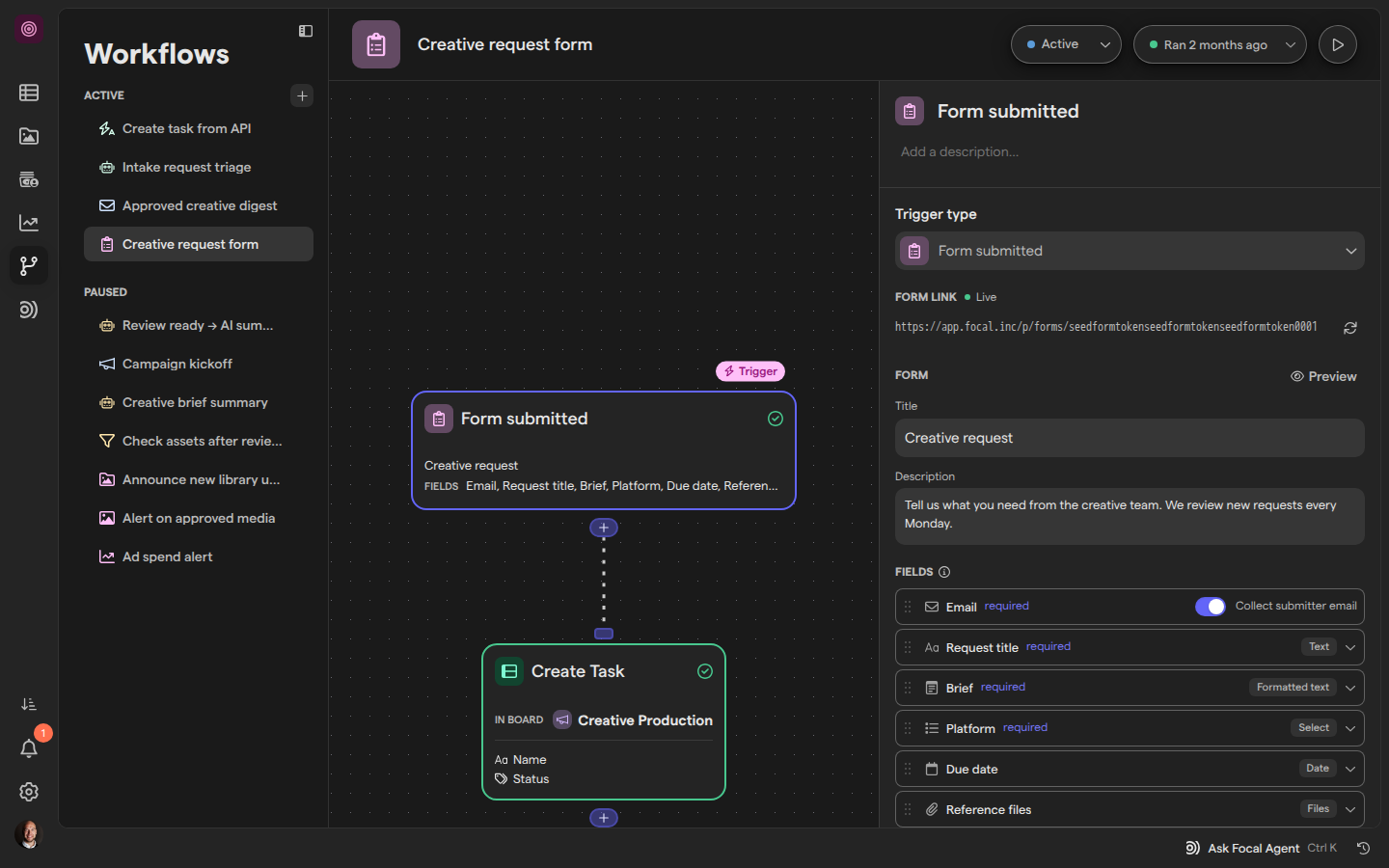
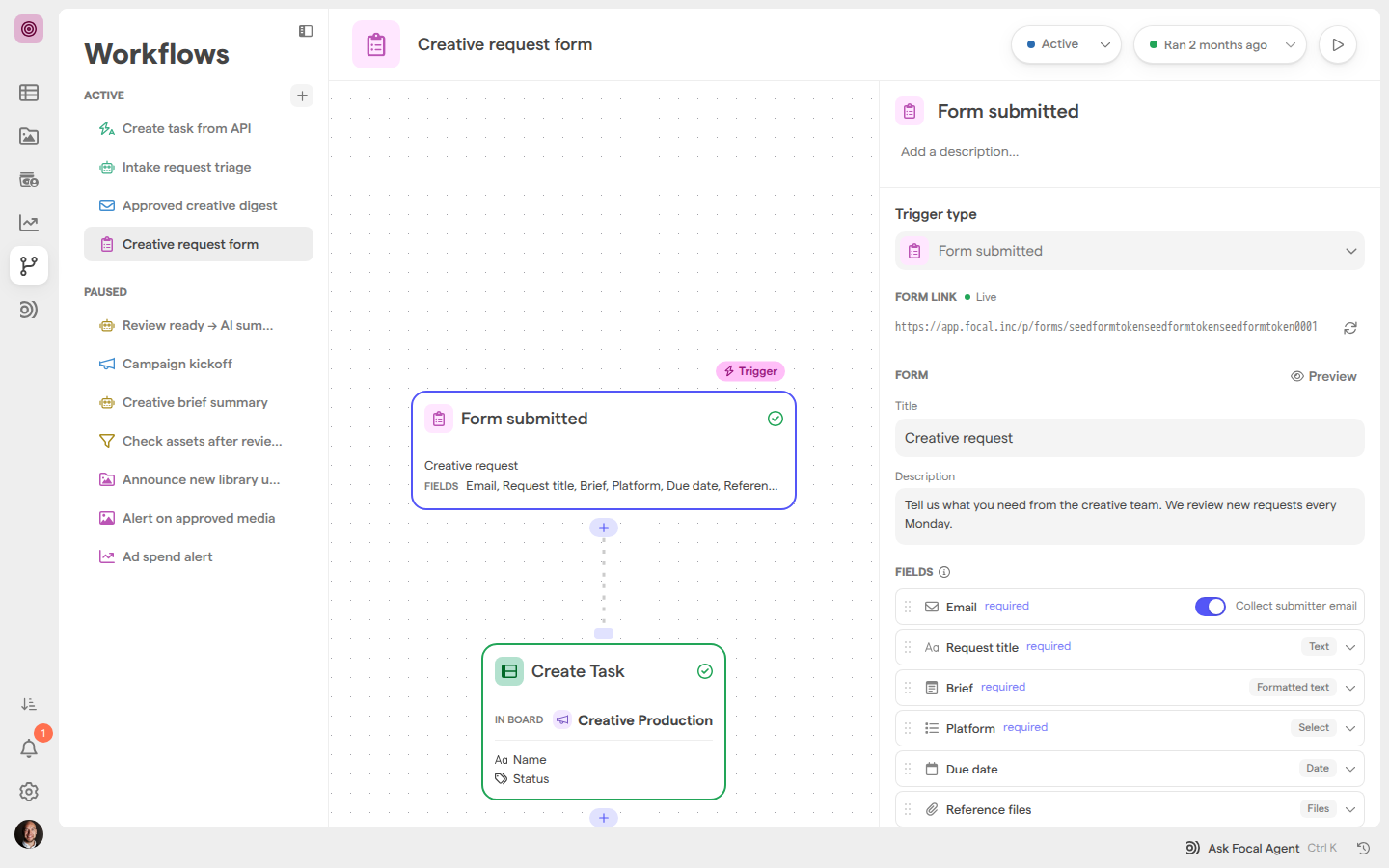
- Click the trigger step on the canvas. Its settings open on the right, with the form link at the top.
To turn an existing workflow into a form workflow, click its trigger step and pick Form submitted in Trigger type. Changing the trigger type resets the trigger’s settings, and steps that used data from the old trigger show an issue until you fix them. A workflow switched this way has no form link yet: click Create link under Form link to make one.
Build the form
A form has a title, an optional description and a list of questions, all set in the Form submitted trigger’s settings. On the canvas, the trigger step shows the title and the questions in order.
- Under Form, type the form’s name in Title. It is the heading visitors see.
- Write instructions in Description, if you need any. They show above the questions and can be formatted.
- Under Fields, click Add field and choose a question type.
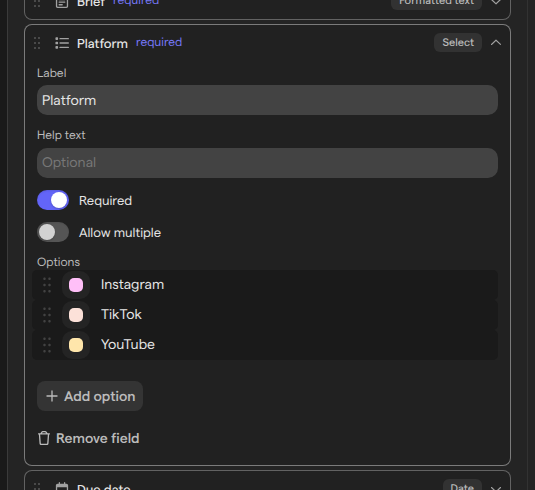
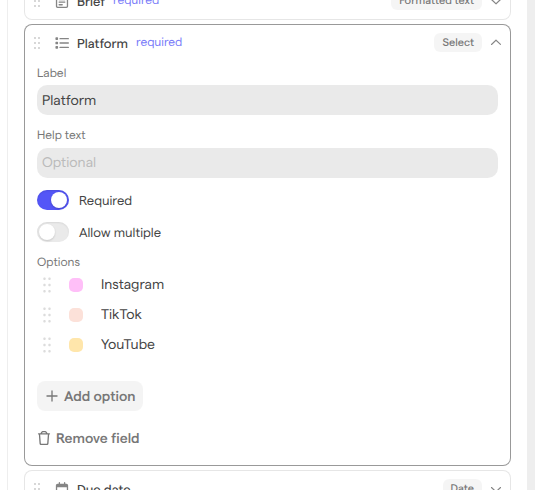
- Type the question in Label.
- Add a hint in Help text, if it helps. It shows under the answer box.
- Turn on Required for a question every visitor must answer.
The question types are:
- Text: a short answer on one line. Character limit sets the maximum length from 1 to 1,000 characters (1,000 when left empty).
- Formatted text: a longer answer with headings, lists, bold and links. Character limit sets the maximum length from 1 to 10,000 characters (10,000 when left empty).
- Number and Date.
- Select: a choice from options you add with Add option. Turn on Allow multiple to accept more than one.
- Files: files the visitor uploads (see Collect files).
- Checkbox: a box the visitor ticks. The answer is yes or no. A checkbox has Must be ticked instead of Required: turn it on when the visitor has to tick the box to submit, such as to accept terms.
Click a question to open or close it, and drag the handle on its left to move it. Remove field removes a question straight away, with no confirmation. Each question becomes a variable later steps can use, and renaming a question after you add it doesn’t break the steps that use its answer.
Collect the submitter’s email
A form asks for the visitor’s email address unless you turn it off. The Email question sits in the Fields list with the others, and its Collect submitter email toggle is on for a new form.
When the toggle is on, every visitor must give a valid email address, and the answer reaches later steps as Submitter email. Drag Email to move it, like any other question. Turn the toggle off for an anonymous form; Email stays in the list, dimmed.
A visitor who is already signed in to Focal finds their address filled in.
Add a question from an attribute
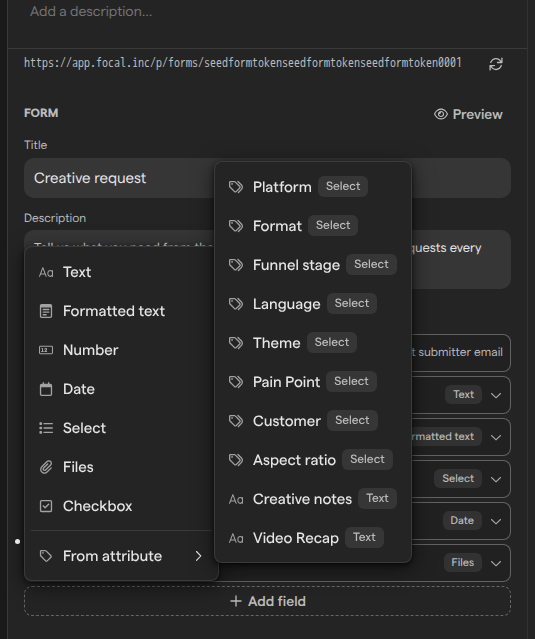
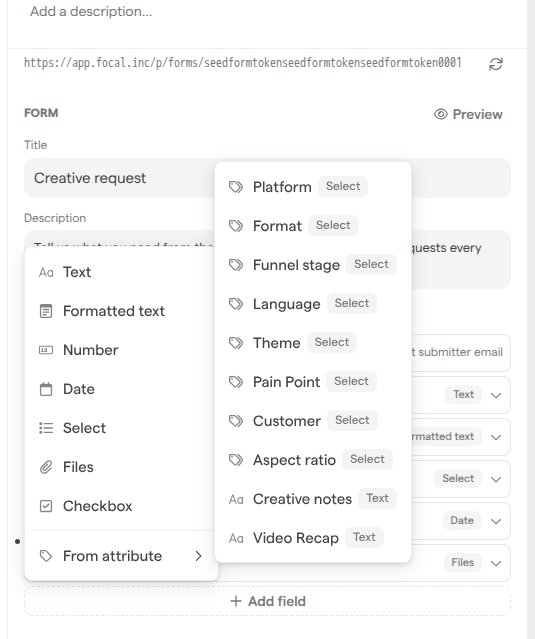
A question can start from one of the space’s media attributes, so a form asks for the same values your assets use. Open Add field → From attribute and pick the attribute. The question takes the attribute’s name as its label.
What the question keeps from the attribute depends on its type:
- A Tags attribute (badge Select) becomes a Select question linked to the attribute, marked “Options follow the attribute”. Its options always follow the attribute’s tags, so a renamed or new tag shows on the form without any change to the workflow. Each Tags attribute can be in a form once.
- Any other attribute gives a question of the matching type, with no link: a Text or Link attribute gives Text, Formatted text gives Formatted text, Number and Date give Number and Date, and a Checkbox attribute gives a Checkbox question.
To edit a linked question’s options yourself, click Unlink. The current tags are copied into the question as ordinary options, and the link can’t be restored except by adding the question again.
Collect files
A Files question lets a visitor upload files with the form, such as mood boards or reference images. Each uploaded file becomes an asset in the space, kept outside the asset library, and reaches later steps as that asset.
A Files question has two settings of its own:
- Accept: Images, Videos or Any file (the default).
- Max files: how many files one visitor can send, from 1 to 50. A new question allows 10.
Visitors drop files on the question or browse for them. Images can be up to 1 GB each and videos up to 4 GB. Submit waits until every upload has finished.
To keep the files in the asset library, add an Add to library step after the trigger, which adds media to a library folder; see Actions.
Share the form link
The form link is the address visitors open to fill in the form. It is at the top of the Form submitted trigger’s settings, under Form link. Click the link to copy it, then share it by email, chat or on a web page.
The label beside Form link says whether the form takes submissions:
| Label | What visitors see |
|---|---|
| Live | The form. The workflow is published and active |
| Paused | “This form isn’t accepting responses”. The workflow is paused |
| Publish workflow to go live | “This form isn’t accepting responses”. The workflow has never been published, or its published version has no Form submitted trigger |
Visitors always get the published version of the form. Your edits save to the workflow’s draft and reach visitors when you publish; see Publishing and versions.
To check your edits before you publish, click Preview next to the Form heading. It opens the draft form in a new tab, even while the workflow is paused or unpublished, for people signed in to Focal with access to the space. A banner marks it as a preview, and Submit is turned off.
To stop an old link from working, click Rotate link, then confirm with Yes, rotate link. The old link stops working immediately and cannot be brought back; share the new one instead.
What visitors see
A visitor who opens the form link sees the form’s title and description, then each question with its help text. Required questions carry an asterisk after their label. The visitor needs no Focal account.
Text and Formatted text questions show a live character counter and stop accepting input at their Character limit.
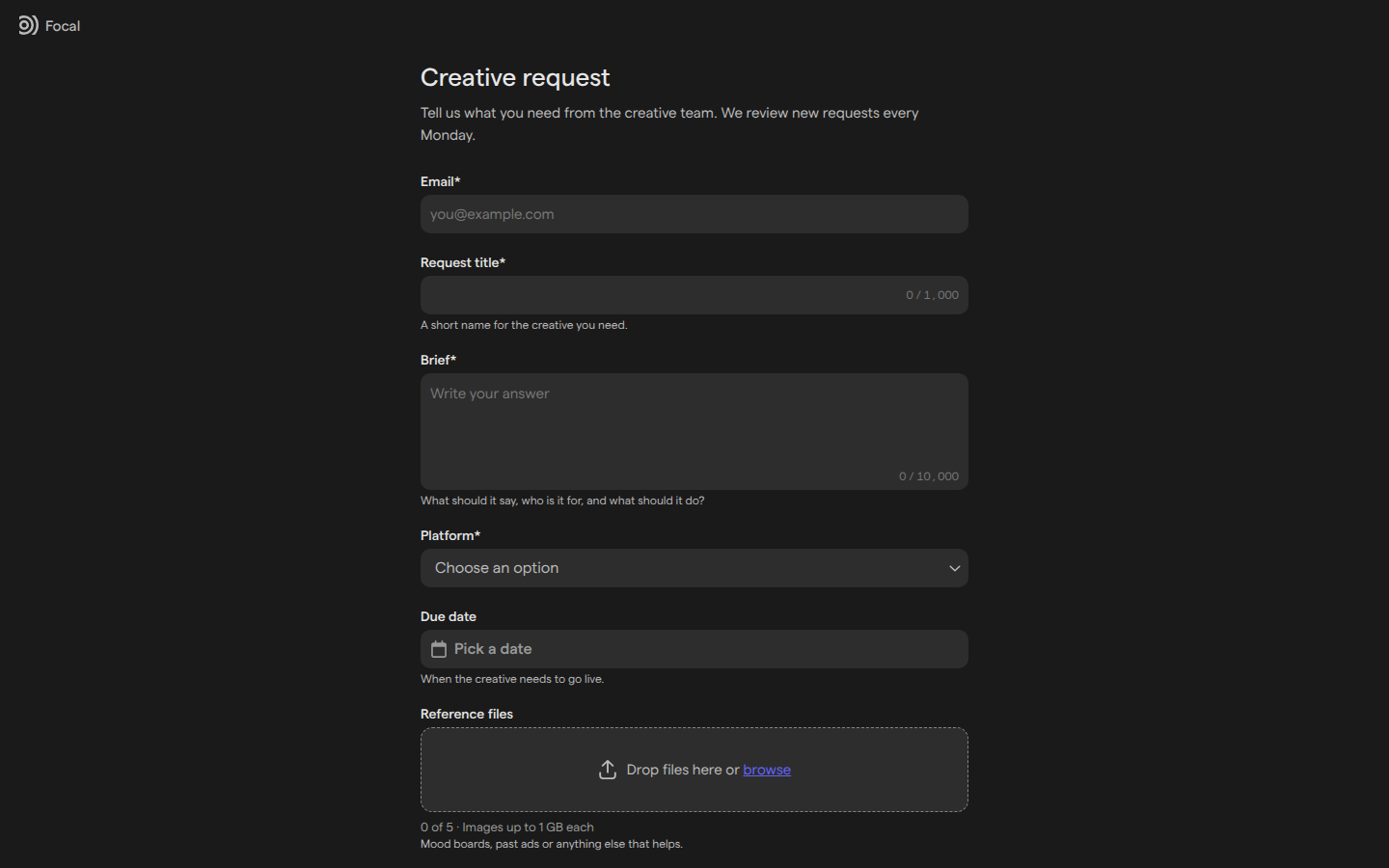
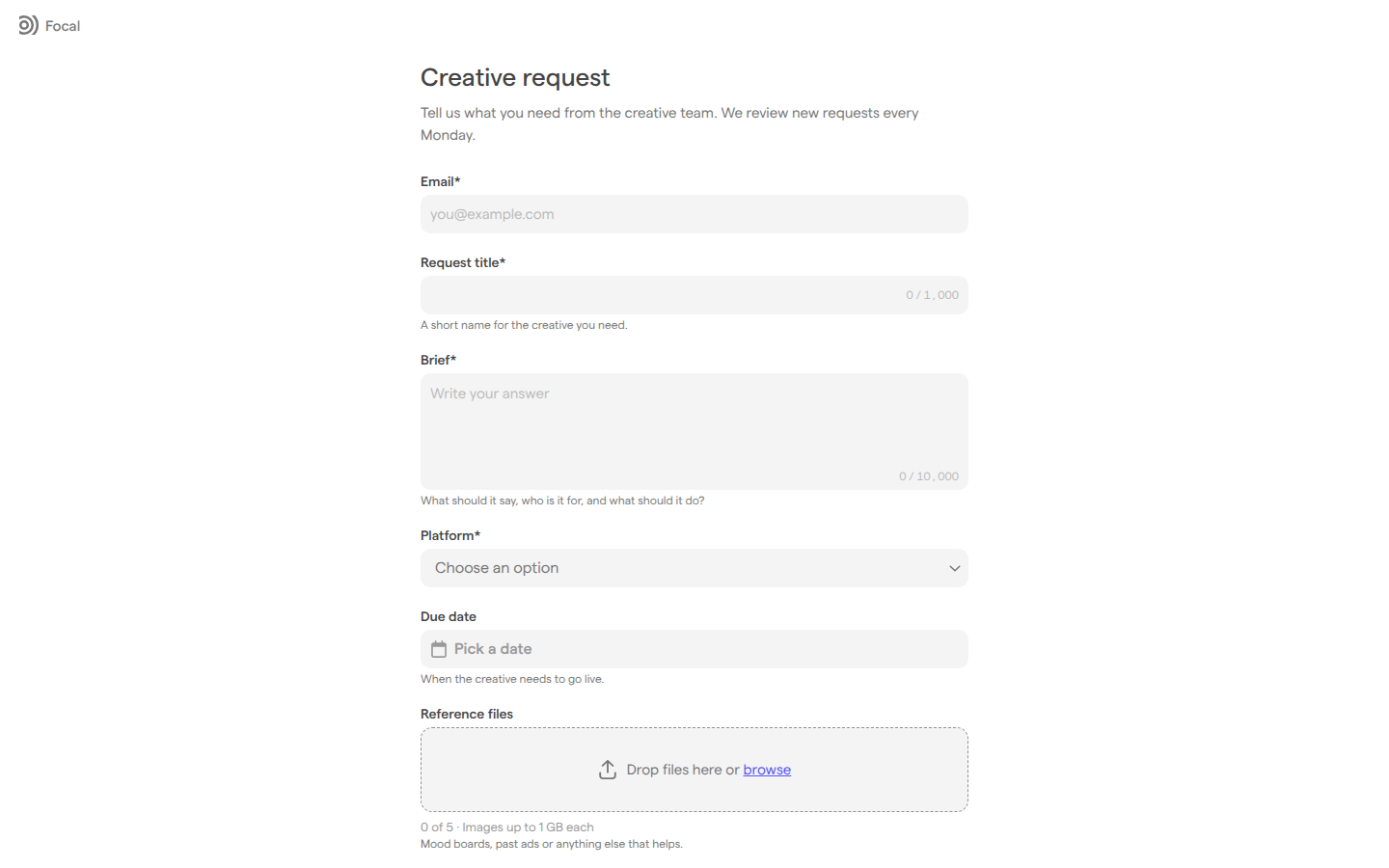
After Submit, the page confirms the response and offers Submit another response to fill the form in again. A missing or wrong answer shows its message under the question, such as “This field is required.”, and the visitor’s answers stay in place.
The visitor’s browser keeps unsent answers for 24 hours. Coming back to the form restores them, with Start over to clear them.
When the form can’t be used, the page says so instead:
- “This form isn’t accepting responses” when the workflow is paused or unpublished, or the link was rotated.
- “This form isn’t working right now” when something in the form’s setup is broken, such as a question whose attribute was deleted (see Fix a form whose attribute was deleted).
Use the answers in later steps
Each submission passes its answers to the steps after the trigger. In any step’s settings, type @ or open a picker, then open Form submitted → Answers to choose a question; see Variables.
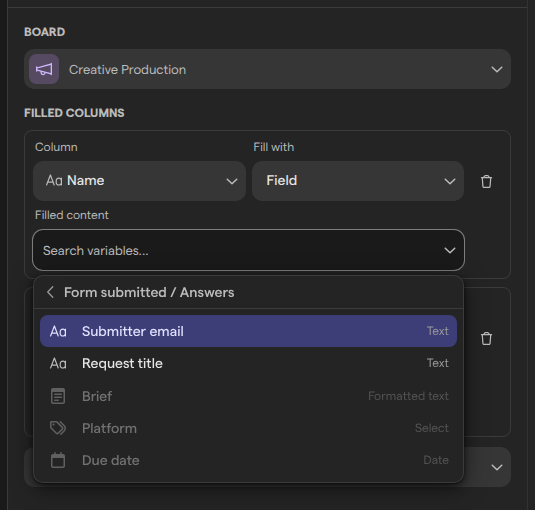
To create a task from each submission:
- Add a Create Task step after the trigger and pick the Board (see Actions).
- Under Columns to fill, set the Name column to Field.
- In Filled content, choose Answers → Request title, or whichever question names the request.
- Add the other columns you want to fill, such as a status.
Most answers arrive as the visitor typed them. A Formatted text answer arrives as Markdown, a Select answer as the option’s name, and a Files answer as assets: one asset when Max files is 1, a list otherwise. Answers that don’t fit a setting are dimmed in the menu, such as a Formatted text answer for a task name.
Check submissions and test the form
Every submission starts one run of the workflow, listed in its Runs like any other. Open a run and click the Form submitted step: Input shows the answers as sent, and Output shows them under answers, as later steps receive them.
To test a form without submitting it publicly, run the workflow by hand:
- Click Run manually, the play button at the right of the workflow’s header.
- Fill in Submitter email and the answers. For a Files question, click Select from library to pick assets up to its Max files limit.
- Click Run now.
A manual run uses the published version and works while the workflow is paused. A submission that no longer matches the form fails at the trigger with “The submission does not match the form:” and the reason.
Fix a form whose attribute was deleted
A Select question linked to a Tags attribute breaks when the attribute is deleted or archived, because its options come from the attribute. The question shows “The attribute this field’s options came from no longer exists. Unlink it and add options, or remove the field.”
The live form breaks at the same moment: visitors see “This form isn’t working right now”, and a manual run fails with “The form can’t be read:” and the reason. The workflow can’t be published until the question is fixed.
- Click the Form submitted trigger and open the question with the warning.
- Click Unlink and add the options yourself, or click Remove field.
- Publish the workflow; see Publishing and versions.
Limits of forms
Forms enforce these limits:
- Publishing needs a title, at least one question, a label on every question, and at least one option, each named differently, in every Select question.
- Answers: 1 to 1,000 characters for Text (1,000 by default) and 1 to 10,000 for Formatted text (10,000 by default), set in Character limit on each question.
- Files: 1 to 50 per question; images up to 1 GB each and videos up to 4 GB.
- Submissions: 10 per visitor every 10 minutes, and 300 per form every hour. Past that, visitors see “Too many submissions. Try again in” and a wait time.
- One link per workflow.
Who can build forms
Forms are part of Workflows, which only space owners and organization admins can open. They can build and change the form, copy and rotate its link, preview it and see every submission’s run. Space members and guests who are not organization admins don’t see Workflows in the space sidebar. See Roles and permissions.
Anyone with the link can submit the form, with or without a Focal account, so rotate the link if it reaches people it shouldn’t.